Manuscript Editor
Lesson 9: The Sacred Act (Manuscript)
“Writing is the only profession where no one considers you ridiculous if you spend all day staring out of a window.”
All the planning, worldbuilding, and AI brainstorming is just preparation. This is the main event.
The Manuscript Editor is designed for one thing: Flow.
When you are here, you are not an architect. You are a storyteller.
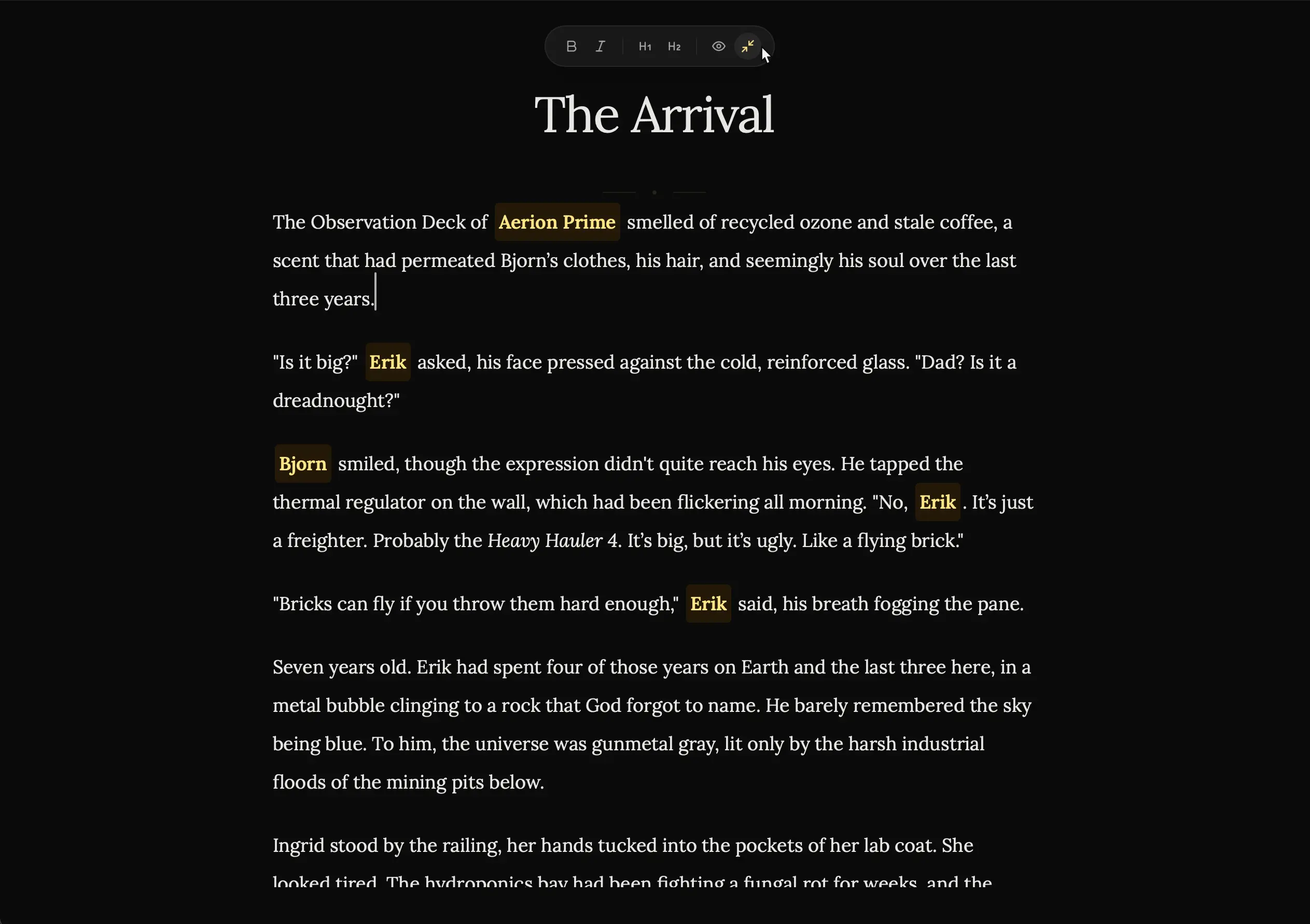
Step 1: Entering the Zone (Zen Mode)
The modern computer is a distraction machine. Notifications, emails, clock ticking.
NovelOS wants to kill those distractions.
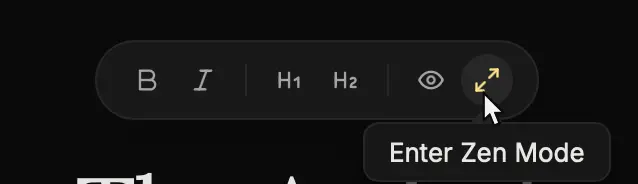
How to vanish:
- Navigate:
Click Manuscript in the top bar. - Zen Mode:
Click the Maximize Icon (⛶) in the toolbar.- Result: Sidebars and menus vanish.
What changed?
The clock is gone. It’s just you and the words.
This is digital silence. Embrace it.
Step 2: Forward Momentum (Vanishing Mode)
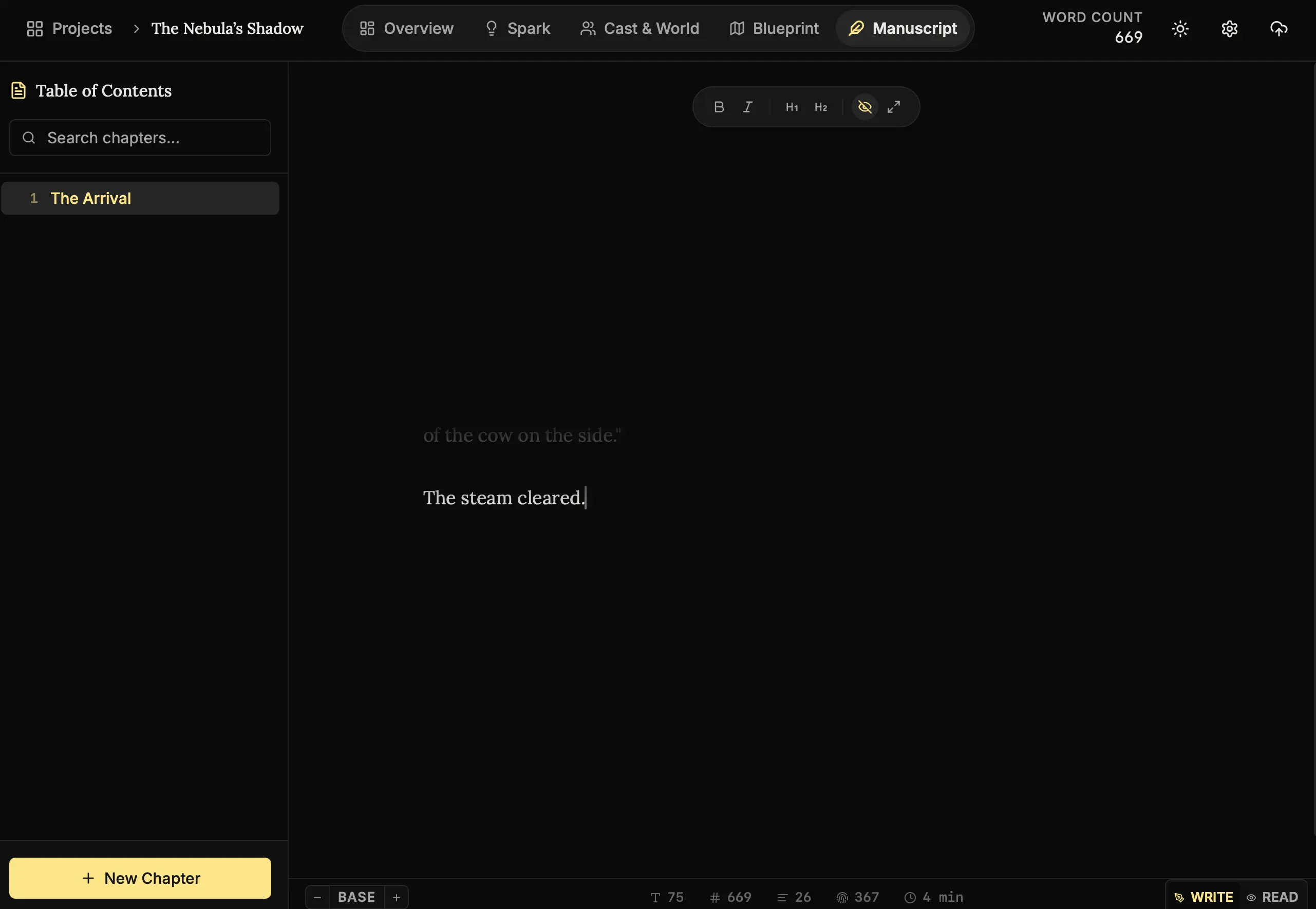
How to silence the critic:
- Activate:
Click the Eye Icon in the toolbar. - Write:
Start typing. Notice that previous sentences fade away. - Constraint:
Try to press Backspace or Delete. You can’t. The only way is forward.
The Inner Critic:
Every writer has a voice in their head saying, “That sentence was bad. Delete it.”
If you listen to that voice, you will never finish. Vanishing Mode forces you to ignore it by physically disabling your ability to edit. Use this for First Drafts where quantity matters more than quality.
Step 3: Staying Connected (Mentions)
You are deep in a scene. You need to mention the main city. Do not—I repeat, do not—alt-tab to check the spelling. You will break your flow.
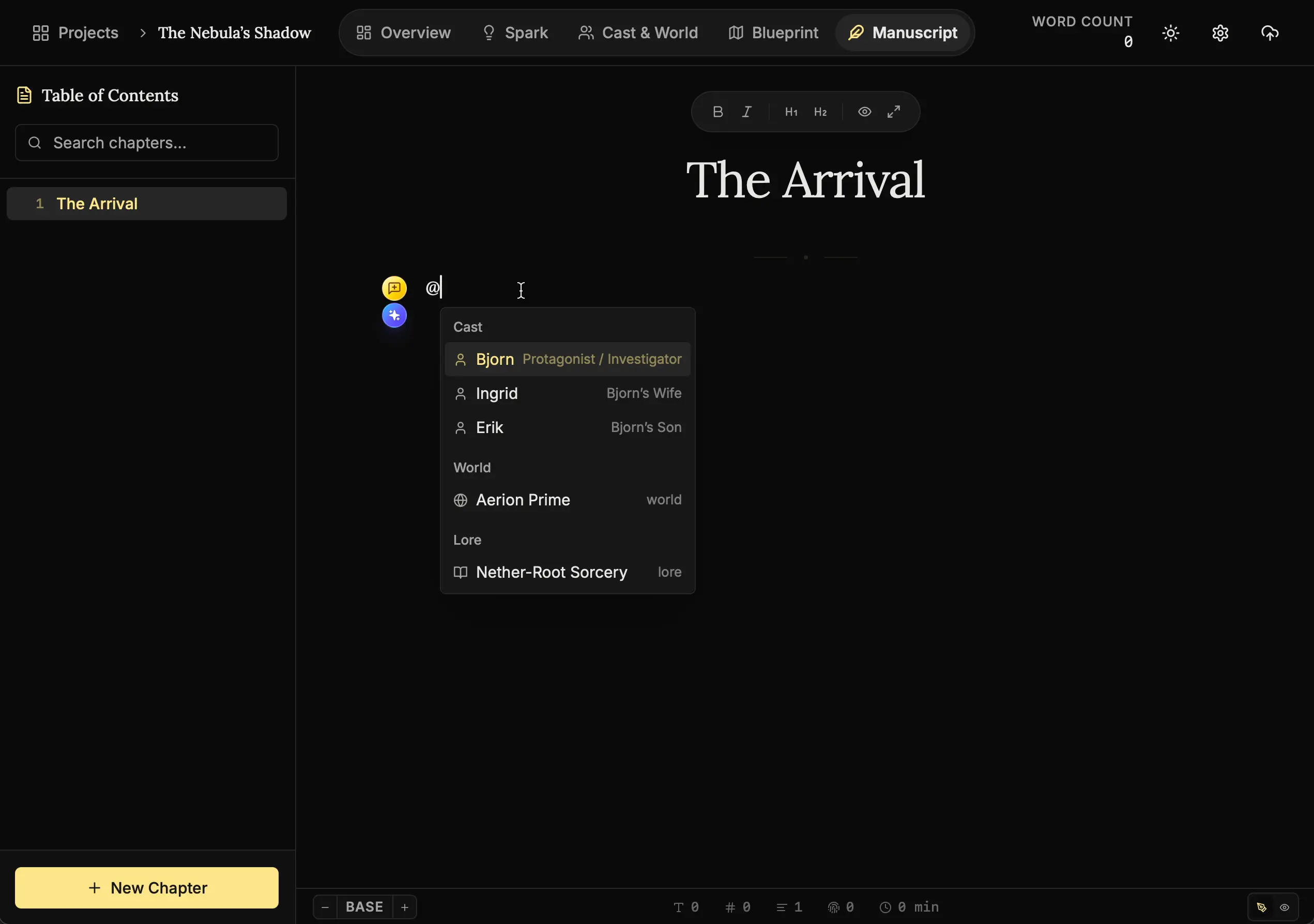
How to link without leaving:
- Trigger:
Type the@symbol. - Select:
A dropdown list of your Cast, World, and Lore appears. Select the entity (e.g., The Iron City or Bjorn). - Result:
It creates a smart link. You can hover over this link at any time to view the Dossier or Details card.
Why use this?
It acts as an instant memory aid. If you forget a character’s eye color or a city’s population while writing, just hover over the name. You don’t need to leave the editor to check your notes.
Step 4: The Scholar’s Focus (Read Mode)
Sometimes you need to absorb your work without the urge to edit.
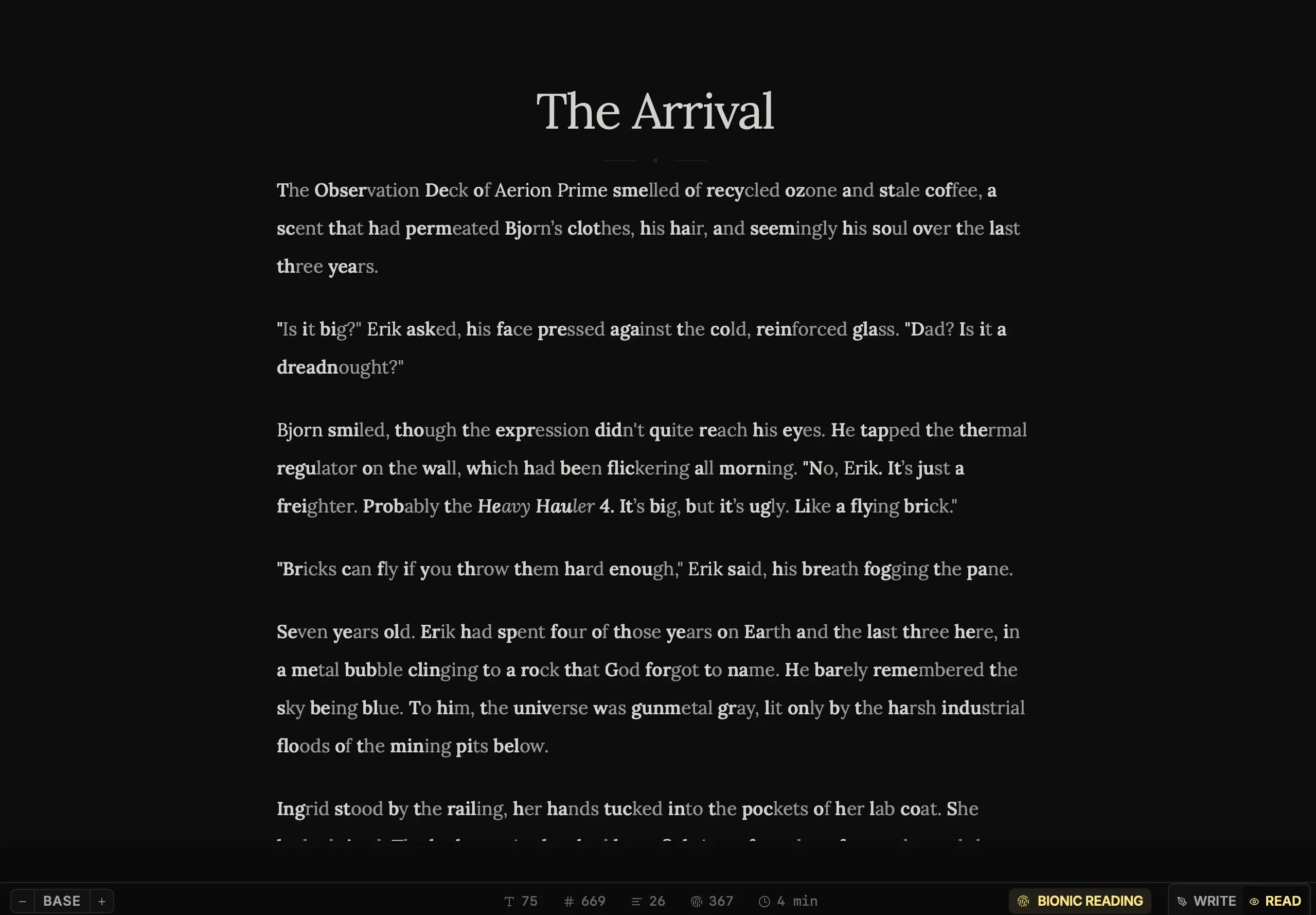
How to review:
- Read Mode:
Click the Book Icon in the Status Bar. The editor becomes read-only. - Bionic Reading:
Click the Fingerprint Icon. This bolds the first few letters of every word, guiding your eye faster through the text.
Step 5: Monitoring the Pulse (Status Bar)
The Status Bar tracks your session statistics.

Vital Signs:
- Word Count: Total words in the document.
- Session Count: Words written since you opened the app.
- Read Time: How long it takes to read.
- Vividness: A metric of how descriptive your language is.
Next Steps
You have drafted your chapter. It’s messy, but it exists. Now, let’s look at how to customize your workspace to fit your eyes.
- Lesson 10: Your Workshop (Settings) - Typography and AI brains.
The page is no longer blank. You did it. 🖋️🔥