Keep it safe: sync and backups
Before you start: finish Bring in an existing draft with Smart Import.
Three chapters in, A Jar of Trouble is worth more than the computer it's on. This tutorial makes a backup file, then puts the book on your phone and a second computer.
Both need the full version. In the trial your books stay on this computer, so if you're on the trial, read along and come back after you activate a licence. Nothing is lost when you do.
Make a backup file
- Press ⌘ 1 for Overview, on the Details tab.
- Under Create Project Backup, click Export Project and choose where to save it.
You should now have a .novelos file holding the whole book: chapters, notes, cast, world, family tree, plot, Spark boards, pictures and snapshots. Keep it somewhere other than this computer. Import Project in the library brings it back.
Turn on sync
Sync goes through a cloud account you already have. This tutorial uses Dropbox; Google Drive and OneDrive work the same way.
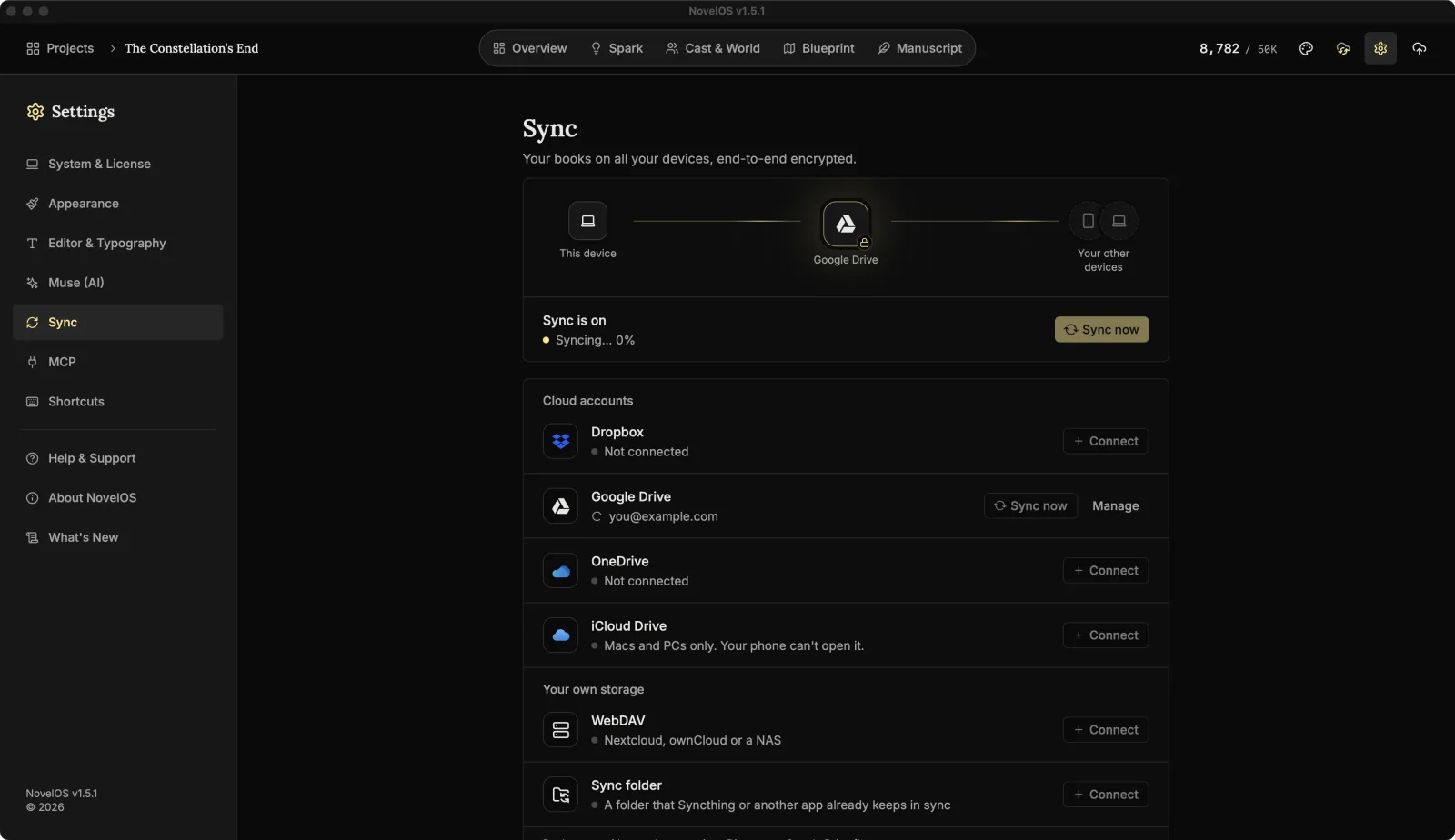
- Press ⌘ , and open Sync. It says Sync is off.
- Click Connect on Dropbox. Your browser opens. Sign in and allow NovelOS.
- Choose a passphrase of at least 10 characters and type it again. It encrypts the book before it leaves your computer, so Dropbox only ever stores files it can't read.
- Save your recovery key with Save as file or Copy, and keep it somewhere that isn't this computer. If you forget the passphrase, it's the only way back in. Nobody else can reset it, us included.
- Tick I saved my recovery key somewhere safe, outside this device. and click Turn on sync.
You should now see a cloud in the top bar. Hover it: once the first sync is done it says Sync: Up to date.
Add your phone
- On your phone, open app.novelos.studio and add it to your home screen.
- Open it from the home screen. Like the computer, it asks how you'd like to start: use your licence key.
- Open Settings, then Sync, and click Connect on Dropbox. Sign in to the same account.
- At Unlock your books, enter your passphrase.
You should now see A Jar of Trouble in the phone's library, with all three chapters. Write a line on the train, and it's on your computer when you get home.
Add a second computer
- Install NovelOS and activate it with the same licence key.
- Open Settings › Sync, connect the same Dropbox account, and enter your passphrase at Unlock your books.
You should now see the book in that library too. After this, sync runs by itself. Sync now in Settings › Sync is there for when you're impatient.
Your Muse keys and this computer's own settings don't sync. If you used a Muse key, add it again on each computer.
If the same chapter gets edited on two devices before they sync, NovelOS keeps both versions and tells you in the Manuscript. Compare shows the other one, so you can keep the best of each.
Learn more
Next: Publish: EPUB, print PDF and audiobook
Checked against NovelOS Studio 1.5.1 · Updated · View as Markdown