Revise: find, mentions, Read Aloud, Book Preview
Before you start: finish Write the first chapter.
Revising is mostly noticing. This tutorial gives you four ways to notice things in Judging Day: search it, rename someone without breaking anything, listen to it, and look at it as a printed page.
Find a word in the chapter
- Open Judging Day in the Manuscript and press ⌘ F.
- Type
marmaladein Find in chapter.
You should now see every match highlighted, and a count such as "1 of 4". Press Enter to step through them. If the count is high, maybe the marmalade can be "it" now and then. Press Esc to close the bar.
Search the whole book
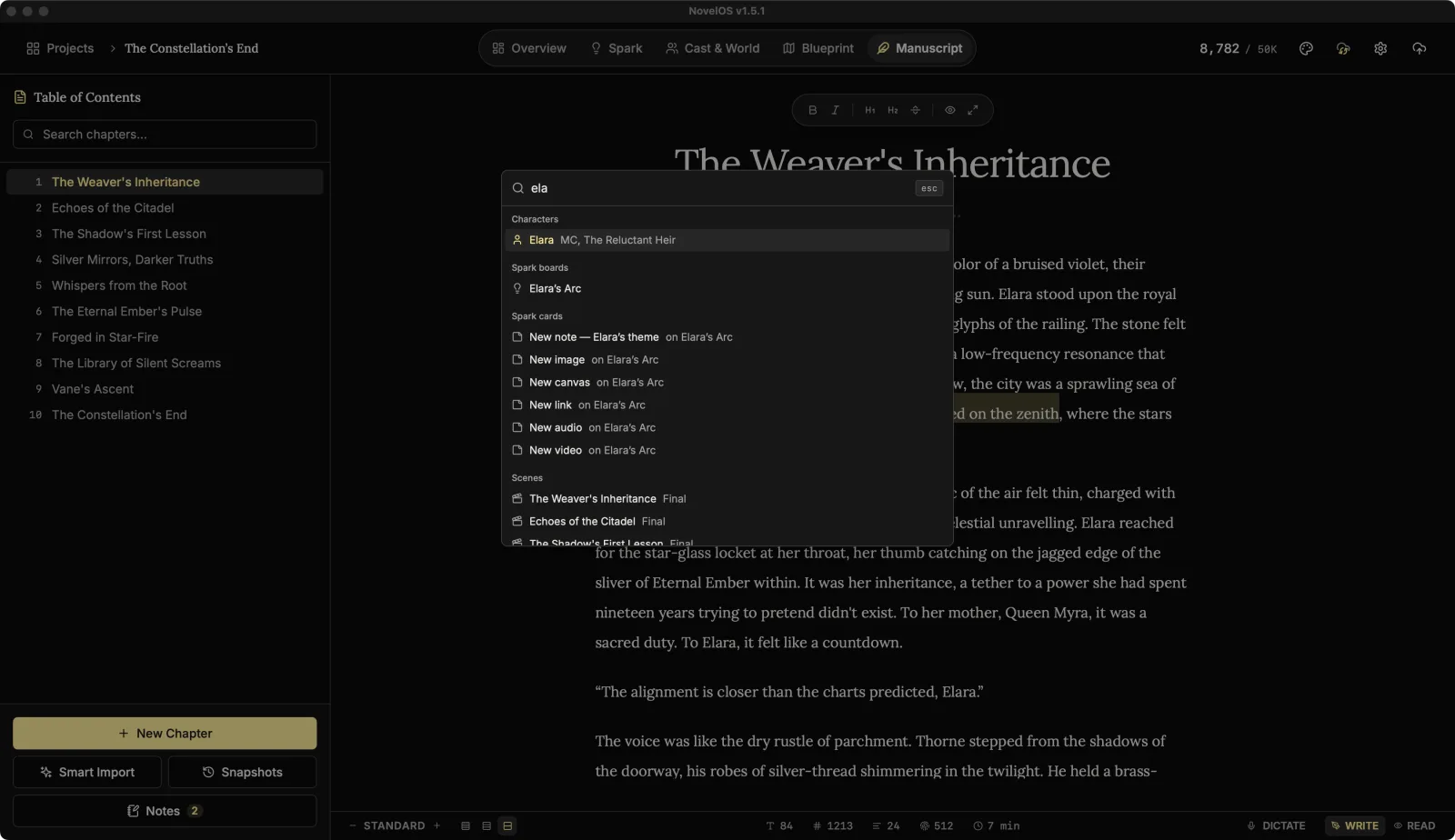
Find works on one chapter. To search every chapter's text, type marmalade in Search chapters... at the top of the Table of Contents.
You should now see Judging Day in the list, because the word is in its text. For names across the book, press ⌘ K and type marmalade: The Marmalade Rules shows under Lore. The palette matches names and titles, not chapter text. Press Esc to close it.
Rename a character everywhere
Your editor thinks a marmalade judge should sound grander. Fair.
- Press ⌘ 3, open Lionel Fairweather, and change Display Name / Nickname to
Judge Lionel Fairweather. - Go back to Judging Day (⌘ 5).
You should now see every mention of him in the chapter showing the new name. You didn't touch the chapter. That's what the @ was for.
Find doesn't replace text, so names you typed without @ stay as they were. Mention characters the first time you write them and this keeps working.
Hear it read aloud
Your ear catches what your eye skips: the sentence with three "and"s, the dialogue nobody would say.
- Press ⌘ , to open Settings, and click Editor & Typography.
- Under Read Aloud, check Chapter narration is on. It is unless you've turned it off.
- Pick a Narrator voice. Click the play button beside a voice to hear a sample. Heart is the default; Fable has a nice village-hall manner.
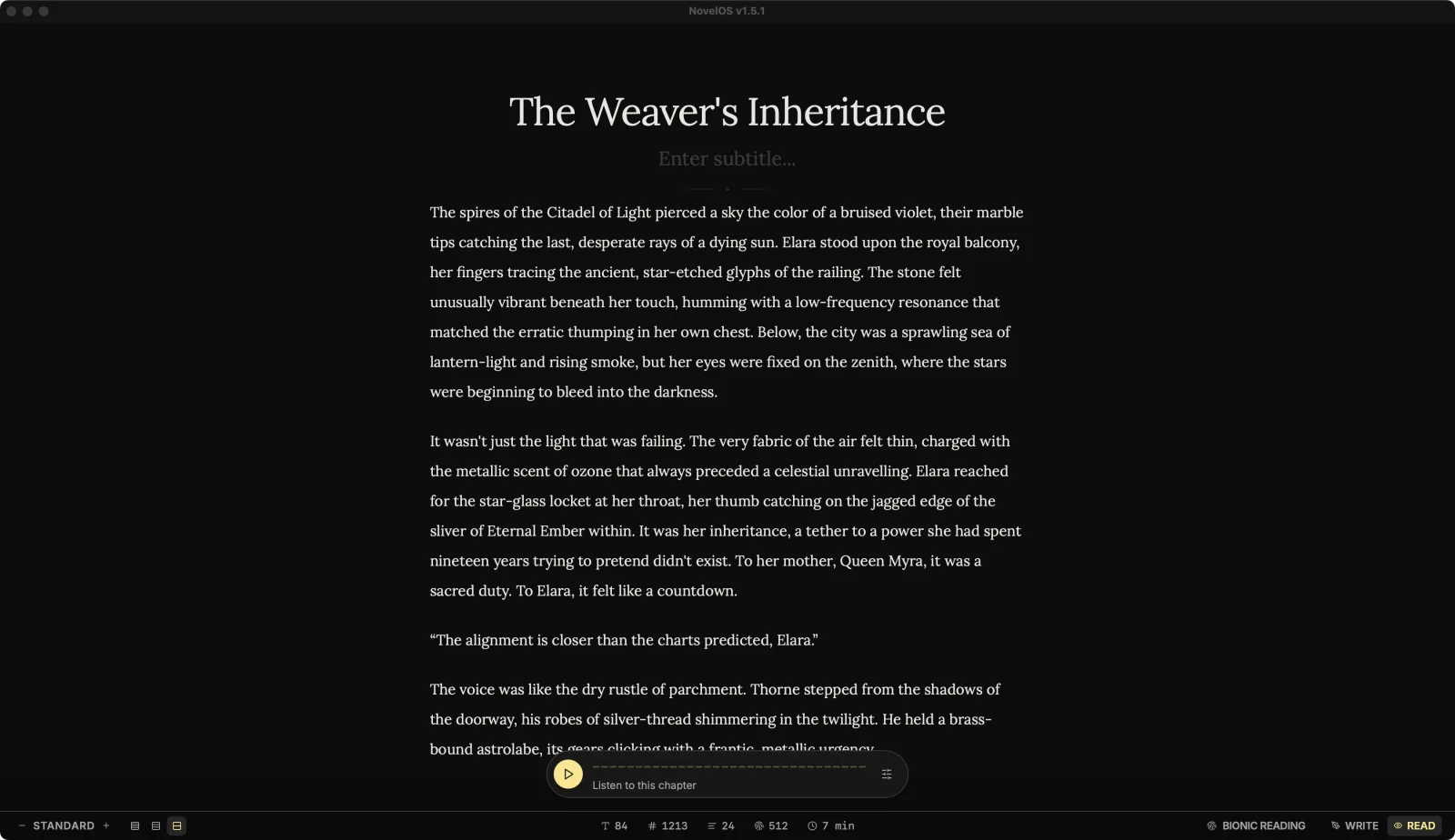
- Go back to Judging Day and press ⇧ ⌘ R to switch to Read mode.
- Click Play in the player at the bottom of the page.
The first time, NovelOS downloads the voice (about 90 MB), and the player says so. After that it works offline.
You should now hear the title, the subtitle and then the chapter, with each sentence highlighted as it's read. Click Stop narration (the ×) when you've heard enough, and ⇧ ⌘ R to go back to writing.
On-device voices only read English. That's why tutorial 2 set the book's language.
See it as printed pages
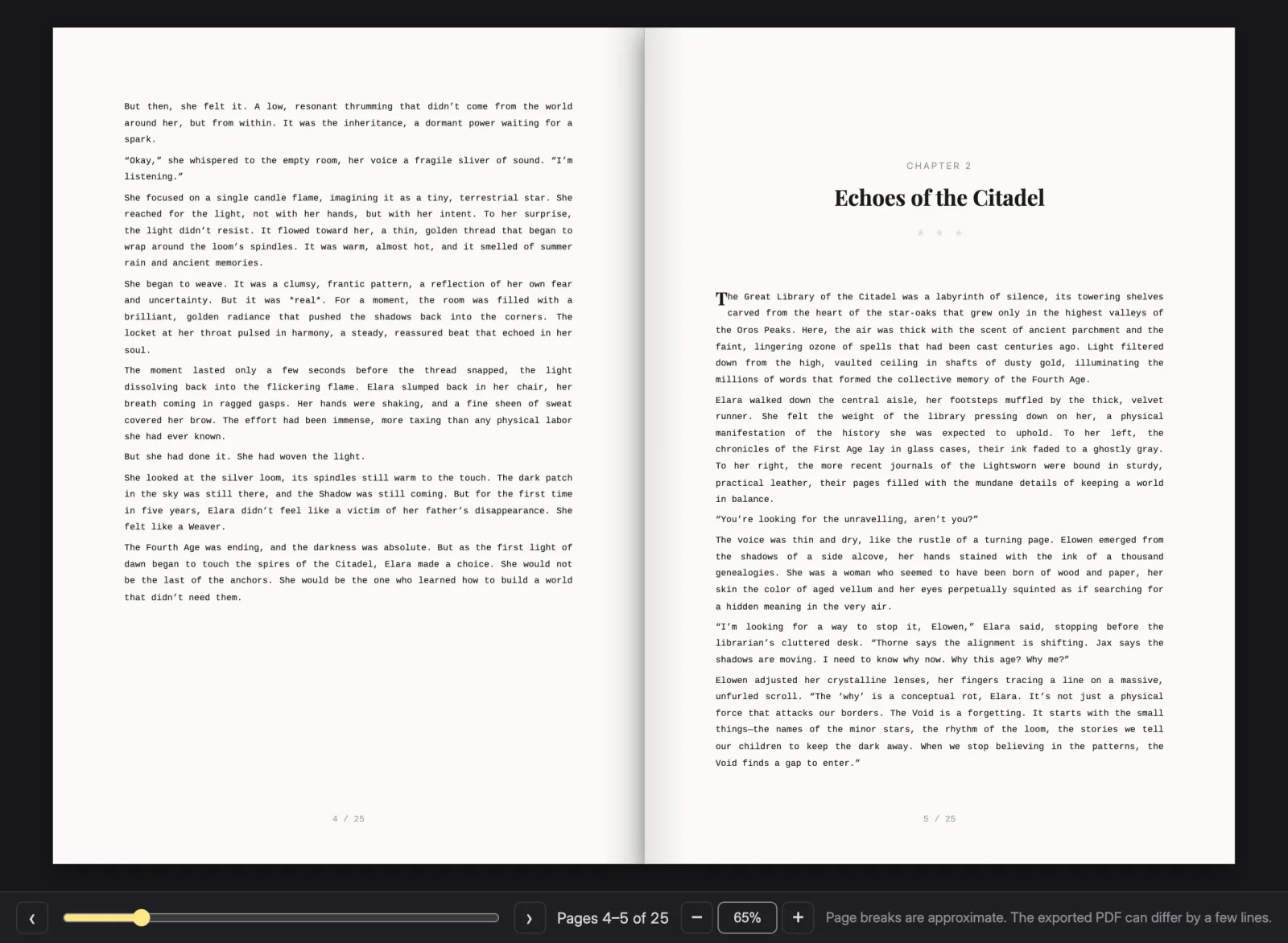
- Press ⇧ ⌘ P. Book Preview opens in its own window.
- Click Next page and Previous page, or use the arrow keys.
You should now see your chapter laid out as a book at 6" x 9", the size every new book starts with. Leave the window open beside the editor and type something: the pages lay themselves out again as you go. You'll pick the final page size in the last tutorial.
Learn more
- Find in a chapter
- Mentions
- Read Aloud and Bionic Reading
- Book Preview
- Command palette and keyboard shortcuts
Next: Bring in an existing draft with Smart Import
Checked against NovelOS Studio 1.5.1 · Updated · View as Markdown