Set up NovelOS and start a book
Before you start: you need a Mac or a Windows computer, an internet connection for the first launch, and about ten minutes.
The book we'll write
Every tutorial works on the same small book, so you can watch it grow:
- Title: A Jar of Trouble, a cosy mystery.
- The trouble: at the Little Wickham marmalade contest, the judge, Lionel Fairweather, collapses after one spoonful.
- The sleuth: Mabel Thorne, 64, retired beekeeper.
- The suspect: her younger sister Iris, whose jar he was tasting.
- The law: Constable Derek Pugh, who would rather be fishing.
Use your own book instead if you like. Just swap the names as you go.
On Windows, read Ctrl wherever these pages say ⌘, and Alt for ⌥.
Install NovelOS
- Download NovelOS Studio for your computer from novelos.studio/downloads. If your Mac or Windows blocks the first launch, Install NovelOS has the fix.
- Install it like any other app and open it.
Start the trial, or activate a licence
The first time NovelOS opens, it asks how you'd like to start.
- Click Try free for 7 days, enter your email and click Start my free trial. No card needed.
- Or, if you've bought it, click I have a license key, paste your key into License Key (Activation Required) and click Activate Your License.
You should now see My Projects, your library. It's empty, which is about to change.
The trial covers almost every tutorial here. A few steps need the full version (EPUB, the audiobook, sync, .novelos backups and a fourth character, because a trial book holds three), and those steps say so. Trial and licence has the full list.
Create the book
Click New Novel (or the Open a New World card).
You should now see the book's Overview, with the title Untitled Novel and the author Unknown Author.
Click the Title and type
A Jar of Trouble.Click Author and type your name, or a pen name you've always wanted.
There's no Save button. NovelOS saves as you type.
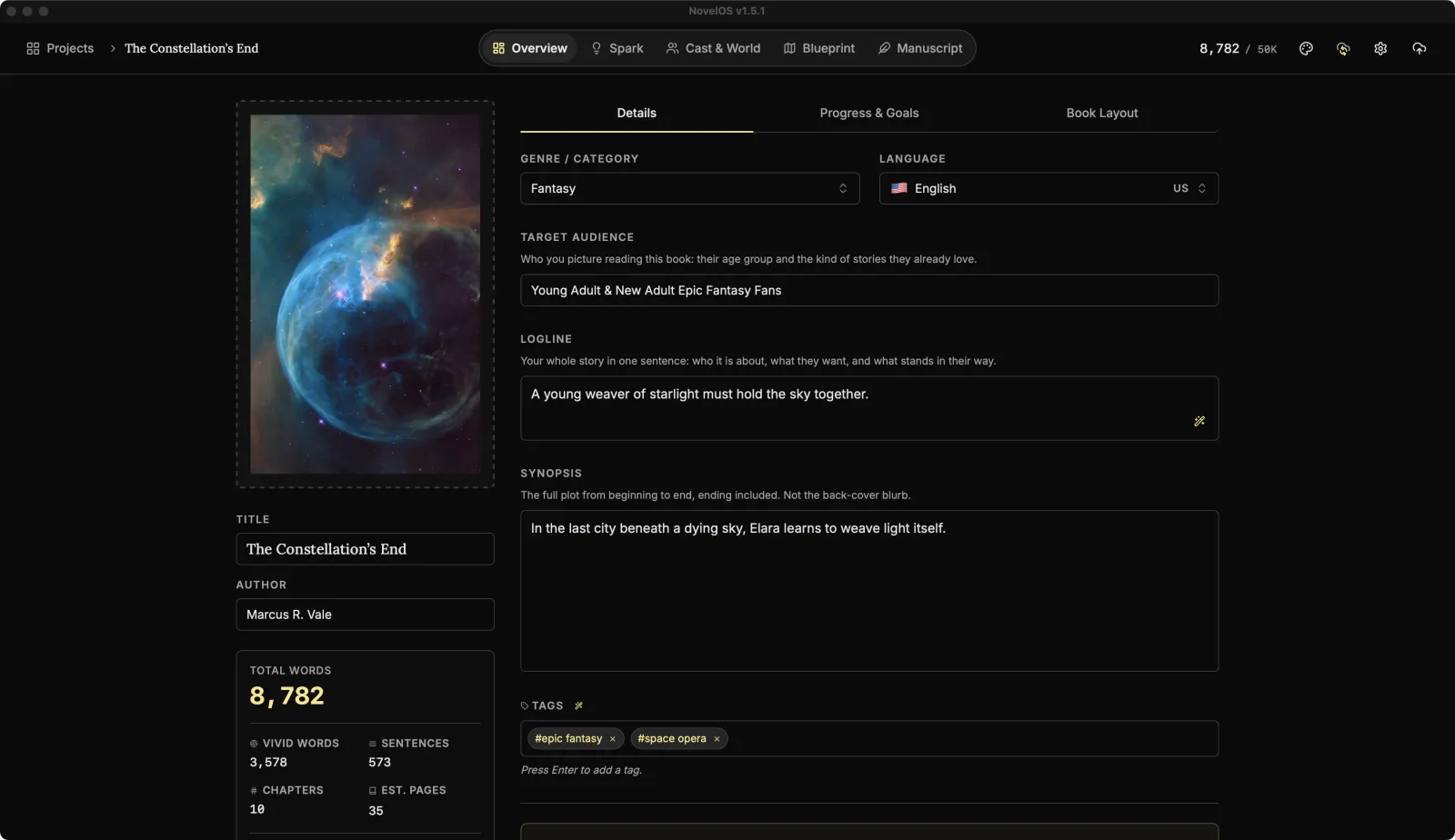
Find your way around
The top bar has the book's main pages. You'll use all of them in the next tutorials:
| Page | Shortcut | What it's for |
|---|---|---|
| Overview | ⌘ 1 | Title, logline, goals and print layout |
| Spark | ⌘ 2 | Boards of loose ideas |
| Cast & World | ⌘ 3 | Characters, places and lore |
| Blueprint | ⌘ 4 | Plot boards, scenes and the timeline |
| Manuscript | ⌘ 5 | The chapters themselves |
| Publish / Export | ⌘ E | EPUB, PDF, Word and audiobooks |
Now go back to the library: click Back to Projects at the left of the top bar, or press ⇧ ⌘ L.
You should now see a card for A Jar of Trouble. Click it to open the book again. It opens in the Manuscript, which says No chapters yet. Correct, and a bit rude.
One more shortcut worth learning now: ⌘ K opens the command palette, which finds any command, chapter or character by name.
Learn more
Next: Catch the idea: Overview and a Spark board
Checked against NovelOS Studio 1.5.1 · Updated · View as Markdown