Catch the idea: Overview and a Spark board
Before you start: finish Set up NovelOS and start a book.
An idea is easier to keep when it's written down in one sentence, with a deadline attached. Then it gets a pinboard.
Say what the book is
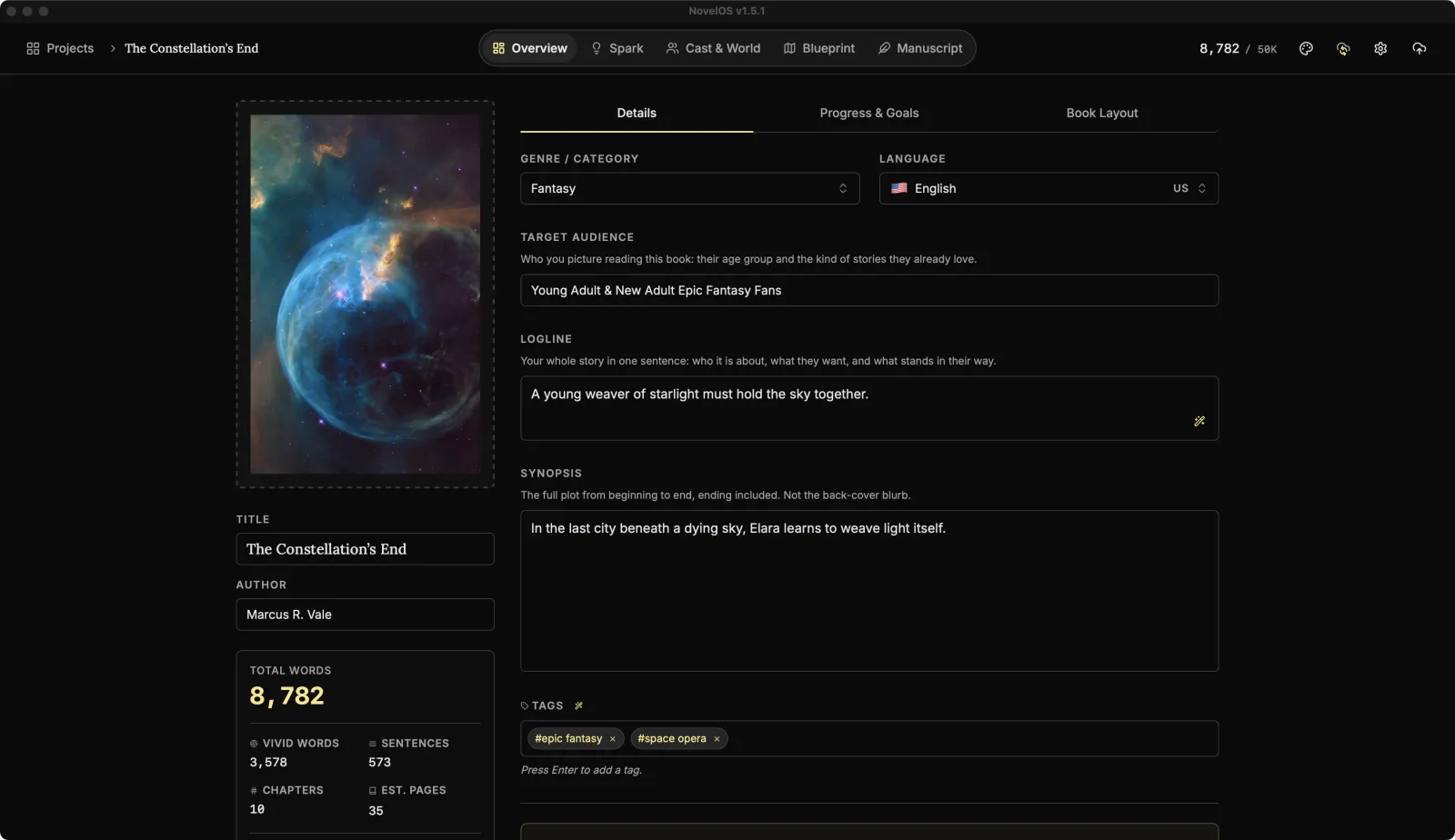
Open A Jar of Trouble and press ⌘ 1 for Overview. It opens on the Details tab.
Under Genre / Category, pick Mystery.
Set Language to English. A new book starts with no language, and the on-device voices for Read Aloud and the audiobook in later tutorials only read English books.
In Logline, write the whole story in one sentence:
When the judge of the Little Wickham marmalade contest drops dead after tasting her sister's jar, retired beekeeper Mabel Thorne has one week to find the real poisoner before the village decides it was Iris.Under Tags, type
cosyand press Enter, thenvillageand Enter.
You should now see the logline under the title on the book's card in your library, too.
Optional, with a Muse key: stuck on the logline? The Oracle: Generate Logline drafts one from your notes. Muse needs your own AI key and the full version. See Connect an AI provider.
Set a goal and a deadline
- Click the Progress & Goals tab.
- In the Target Goal card, set Goal to
70000. Cosy mysteries run shorter than epics, and that's part of their charm. (Clicking the field also opens Writing Presets, with common lengths if you'd rather pick one.) - Click Set a deadline and pick a date a few months away.
You should now see how many words a day you need to finish on time. The deadline also appears on the book's card in the library.
The Momentum numbers are all zero. Only typing counts toward them, and we haven't typed anything yet.
Start a Spark board
Spark is the pinboard for things that aren't the book yet.
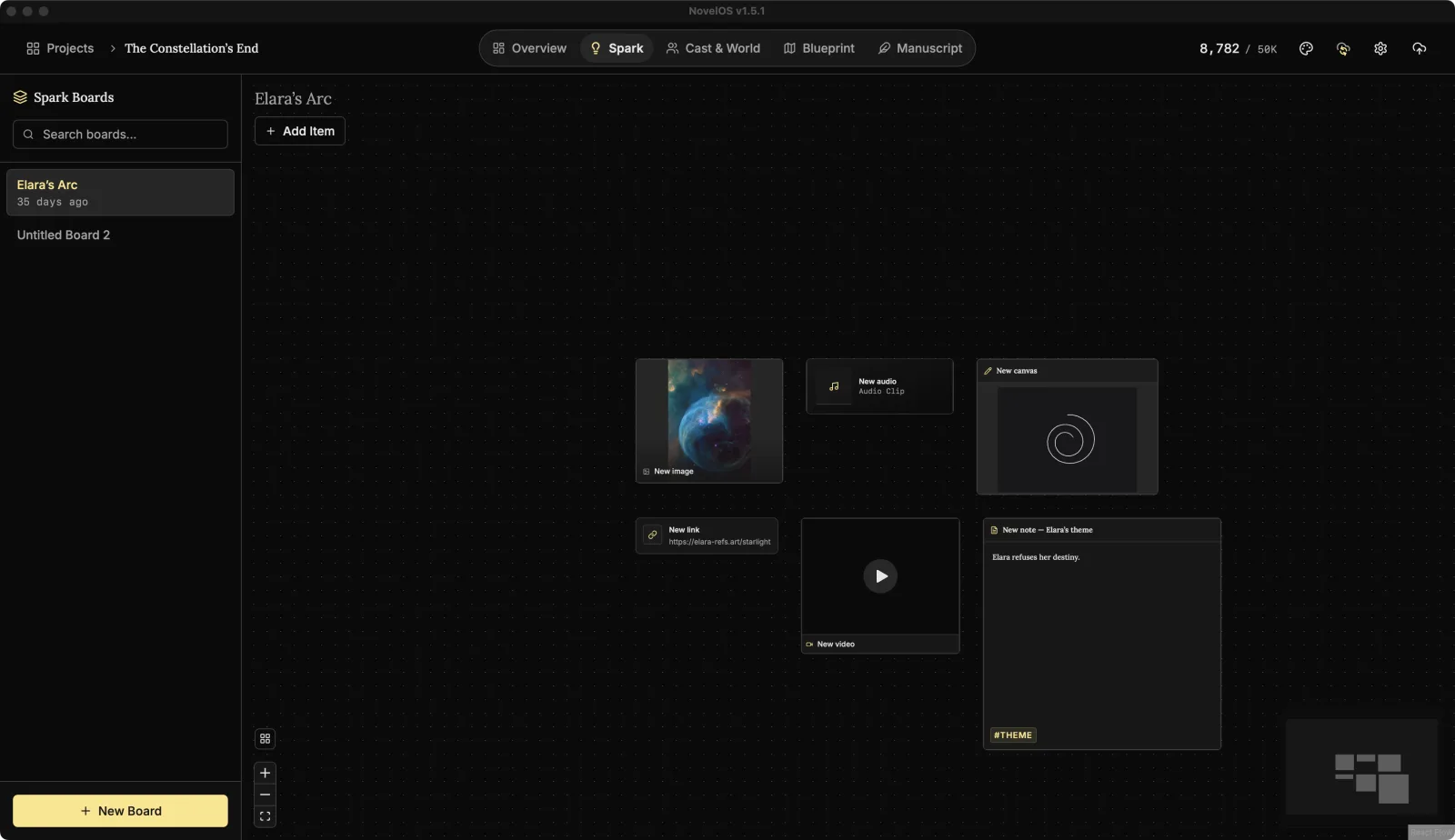
Press ⌘ 2 for Spark. A new book already has one board, Untitled Board 1.
Hover the board in the Spark Boards list, click the pencil, type
Little Wickhamand press Enter.Click Add Item and choose Note. Hover the new card and click Open Editor, then write a few lines:
Suspects: Iris (obviously, says everyone). The vicar's wife (lost three years running). The new jam shop.Copy a web address, for example a marmalade recipe, click an empty part of the board and press ⌘ V. It becomes a Link card.
Click Add Item and choose Image. Click the new card, and in the details panel on the right click Upload Image to add a photo of a jar, a village hall or a suspicious-looking spoon.
Click Tidy Up (the grid button in the lower left) to line the cards up.
You should now see three cards on the Little Wickham board, in a neat grid.
Optional, with a Muse key: an Image card can make its own picture. Type a description in its details and click Generate with AI.
Learn more
Next: Build the cast and the world
Checked against NovelOS Studio 1.5.1 · Updated · View as Markdown