Sync your books between devices
Sync keeps the same books on your desktop, your laptop and your phone. They travel through a cloud account or storage you already have, and they're encrypted on your device before they leave it, so the cloud only ever holds files it can't read.
Open Settings › Sync. Until you connect something, it says Sync is off and Your books are only on this device.
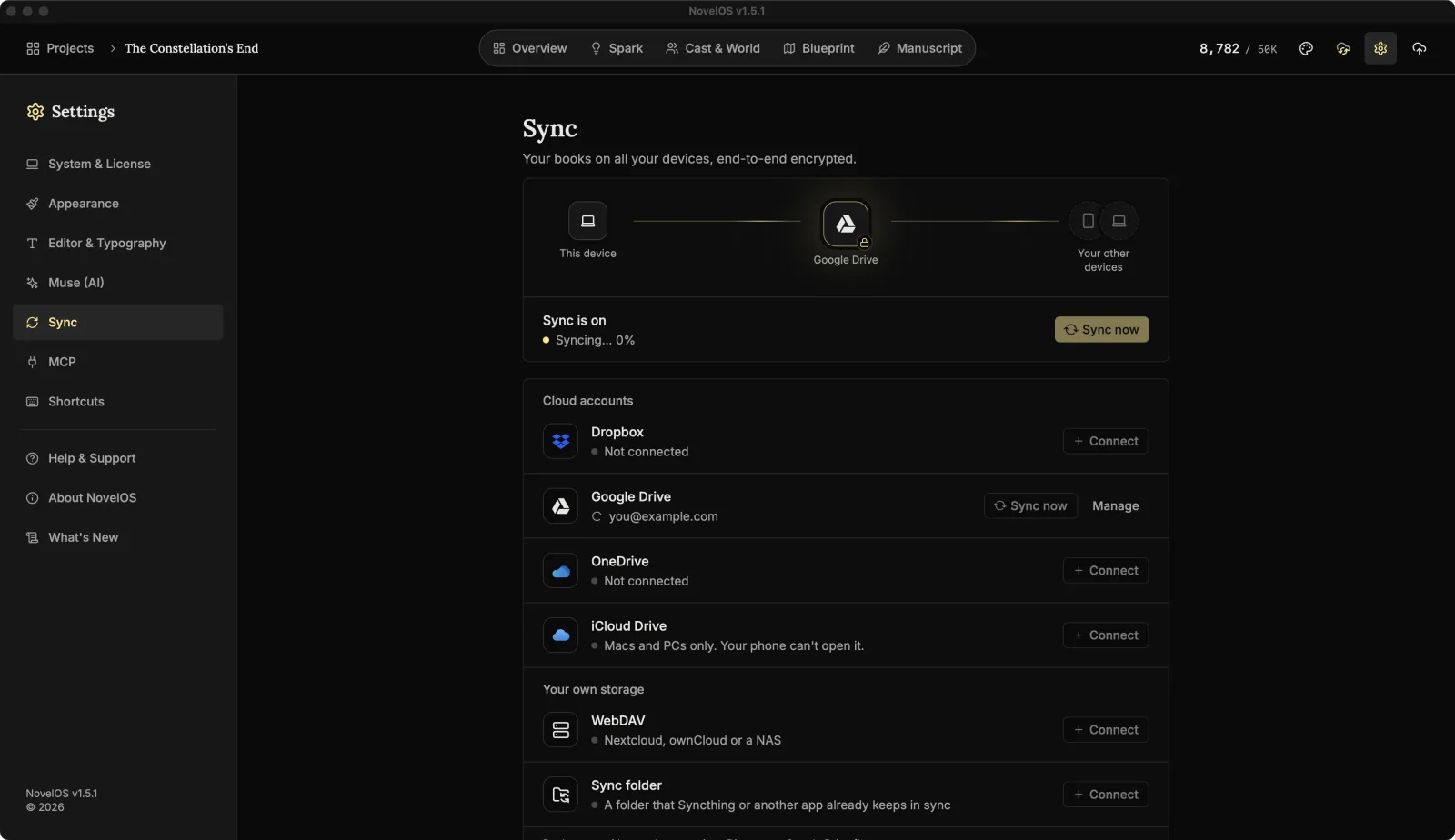
Pick a place
Books sync with one place at a time. There are two groups.
Cloud accounts: you sign in through your browser.
| Place | Your books go to |
|---|---|
| Dropbox | Apps/NovelOS Studio |
| Google Drive | A hidden app folder that doesn't show in your Drive file list |
| OneDrive | Apps/NovelOS Studio |
| iCloud Drive | iCloud Drive/NovelOS Studio. Macs and PCs only; your phone can't open it. Not offered on Linux. |
Your own storage: for people who run their own.
| Place | What it is |
|---|---|
| WebDAV | Nextcloud, ownCloud or a NAS. Your books go in a NovelOS Studio folder there. |
| Sync folder | A folder that Syncthing or another app already keeps in sync. NovelOS makes a NovelOS Studio folder inside it. |
Turn on sync
- Click Connect on a place.
- For a cloud account, your browser opens. Sign in and allow NovelOS. Google asks for two permissions: tick both. Sync needs one, and exporting to Drive needs the other.
- For WebDAV, fill in the Server address, User name and App password, then click Connect. In Nextcloud the WebDAV address is under Files, then Files settings, then WebDAV. The address has to start with
https://, so your password isn't sent in the clear (a server on this same computer can usehttp://). - For a Sync folder, pick the folder.
- Choose a passphrase. It encrypts your books before they leave this device. Use at least 10 characters; a few words only you would pick works better than one clever word. The meter under it goes from Weak to Strong. Type it again to confirm.
- Save your recovery key. It's 8 groups of 5 characters. If you forget your passphrase, this key is the only way back in. Click Copy, or Save as file to save a text file. Then tick I saved my recovery key somewhere safe, outside this device.
- Click Turn on sync.
NovelOS can't recover your passphrase for you. Nobody can. That's the point of it, and also why step 3 exists.
Add another device
On your second computer (or your phone), open Settings › Sync and connect the same place. NovelOS finds your books there and asks you to Unlock your books with the passphrase you chose on the first device. You only enter it once per device.
Forgot it? Click Forgot it? Use your recovery key, type the key, and choose a new passphrase.
Keeping it in sync
After that, sync runs by itself: when NovelOS starts, after you write, when you come back to the window, and every so often in between. Dropbox, Google Drive and OneDrive also tell NovelOS when another device changed something, so it shows up soon.
To sync right away, click Sync now.
While sync is on, a cloud in the top bar shows how it's doing: a check when everything is up to date, turning arrows while it syncs, a line through it when you're offline, and a red dot when sync needs you. Hover it for the sync status in words, such as Sync: Up to date. Clicking it opens Settings › Sync. The cloud is hidden while sync is off.
The status line says how it's going:
| You see | Meaning |
|---|---|
| Connected. Waiting for the first sync. | Just connected. |
| Syncing… | Working. It may count files or show a percentage. |
| Up to date. | All done, with when it last synced. |
| Offline. Changes will sync when you're back online. | Keep writing. It catches up later. |
What syncs
Under What syncs:
- Books: every book is ticked to start with. Untick one to keep it on this device only. Find a book searches the list, and the count shows how many are syncing.
- Writing settings: font, spacing and goals. That covers things like the editor font and size, line height, paragraph spacing, indents, typewriter mode, your daily word target and the session timer.
- Appearance: your theme, custom colours and light or dark mode.
AI keys, your license and this device's settings never sync. That includes your Muse keys and prompts, and the AI tools settings and log. Add your Muse key again on each computer.
Encryption
Your passphrase locks everything before upload. The provider only sees encrypted files. The Encryption section appears once you're connected:
- Passphrase, Change: enter your current passphrase and a new one. Your other devices keep syncing. New devices will need the new one.
- Recovery key, Show: enter your passphrase to see the recovery key again, if you've lost your copy.
Edited on two devices
If the same chapter changed on two devices before they synced, nothing is thrown away. A notice in the Manuscript says the chapter was edited on two devices and that both versions are kept (and which device the other one came from). Compare opens the other version, which is kept as its own chapter, so you can take what you want from each. Dismiss hides the notice.
Manage, disconnect or delete
On the connected place, click Manage:
- Disconnect stops syncing. Your books stay on this device and in the cloud.
- Delete cloud copy deletes the encrypted copy from that place and disconnects. Your other devices stop syncing. Books on this device are kept.
Both ask first. To move to a different place, disconnect the current one, then connect the new one.
When sync needs you
| You see | What to do |
|---|---|
| Signed out. Reconnect to keep syncing. | Click Reconnect and sign in again. |
| Locked. Enter your passphrase to keep syncing. | Enter your passphrase. |
| The cloud storage is full. Free up space to keep syncing. | Make room in the account. |
| The sync folder can't be found. Reconnect to choose it again. | The folder moved or its drive isn't plugged in. Reconnect and pick it. |
| Waiting for iCloud Drive to download your books. | iCloud is still fetching files. Sync tries again shortly. |
| iCloud Drive is off on this computer. Turn it on, then reconnect. | Turn on iCloud Drive in your system settings. |
| Sync stopped. Try Sync now, or reconnect. | Try Sync now. If that fails, reconnect. |
| Google Drive needs both permissions. Connect again and tick both boxes. | Connect again and tick both. |
| Couldn't connect. Try again. | The sign-in didn't finish. Try again. |
WebDAV has its own messages:
| You see | What to do |
|---|---|
| Couldn't reach that server. | Check the address and your connection. |
| The server didn't accept that user name and password. | With two-step sign-in on, Nextcloud needs an app password, not your normal one. |
| That address answered, but not as a WebDAV folder. | Copy the WebDAV address from your server's settings. |
In the trial
Sync is part of the full version. Your trial keeps your books on this computer. See Trial and licence.
Related
Checked against NovelOS Studio 1.5.1 · Updated · View as Markdown