Command palette and keyboard shortcuts
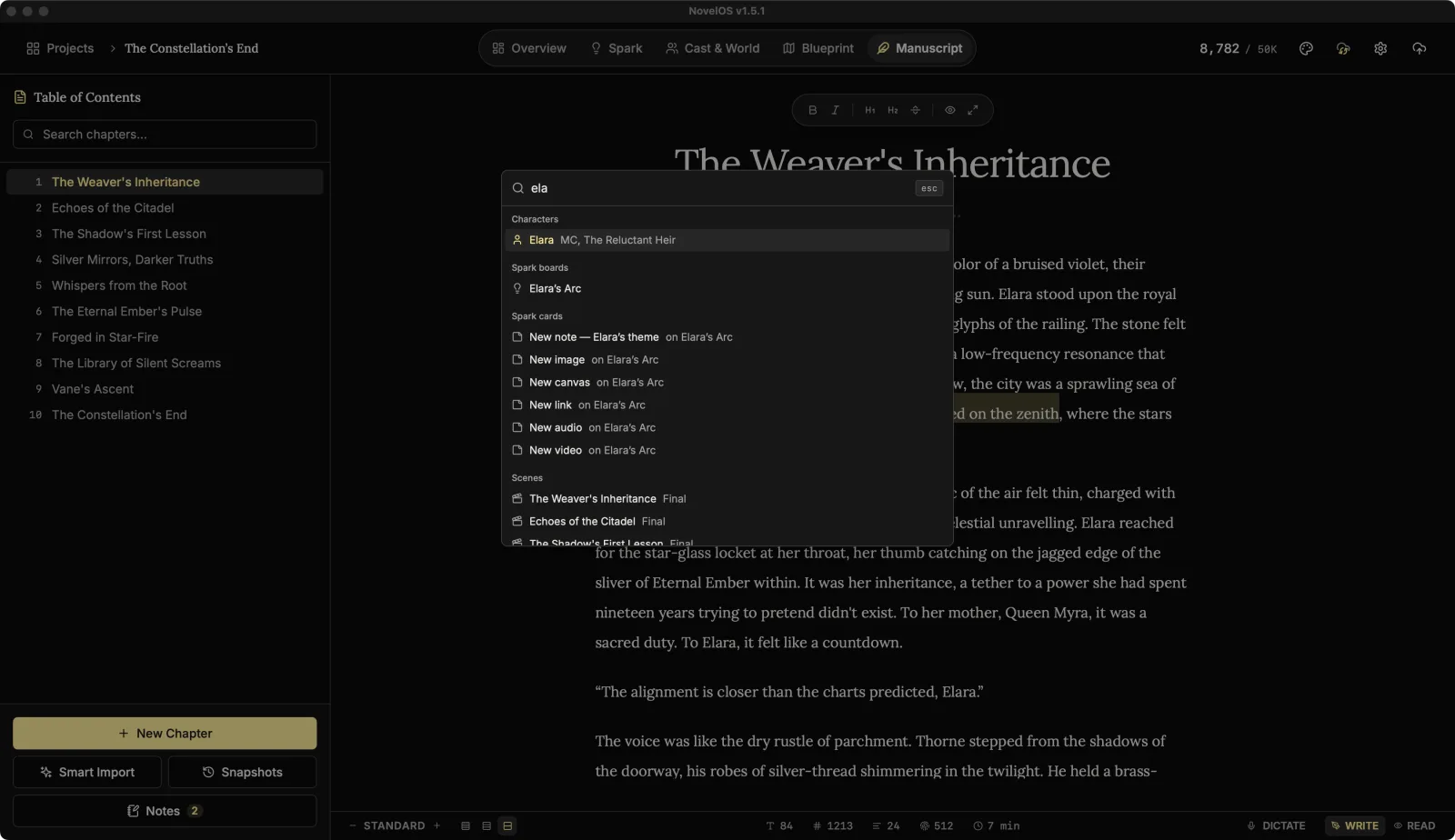
Press ⌘ K anywhere. A search box opens that reads Search commands and your book… (or Search commands and books… on the Projects page). Type a few letters, press Enter, and it's done. On Windows and Linux, use Ctrl wherever this page says ⌘.
What you can find
The palette searches commands and your whole book at once:
- Chapters, and Sections in this chapter (the parts of the open chapter between scene breaks)
- Characters, Places & items and Lore from Cast & World
- Scenes and Plot boards from Blueprint
- Spark boards and Spark cards from Spark
- Books in your library
Results say where they live, such as "in Manuscript", "Chapter 4" or the board a card is on. With nothing typed, Recent shows what you used last. A long group ends with Show all.
Commands
Go to
| Command | Shortcut |
|---|---|
| Open command palette | ⌘ K |
| Go to Library | ⇧ ⌘ L |
| Overview | ⌘ 1 |
| Spark | ⌘ 2 |
| Cast & World | ⌘ 3 |
| Blueprint | ⌘ 4 |
| Manuscript | ⌘ 5 |
| Publish / Export | ⌘ E |
| Word count & goals | ⇧ ⌘ W |
| Book layout | |
| Previous chapter | ⌥ ⌘ ↑ |
| Next chapter | ⌥ ⌘ ↓ |
Create
| Command | Shortcut |
|---|---|
| New chapter | ⌘ N |
| New sub-chapter | ⇧ ⌘ N |
| New part (top-level chapter) | ⌥ ⌘ N |
| New Scene | ⌥ ⌘ S |
| Scene Break | ⇧ ⌘ Enter |
| New Character | ⌥ ⌘ C |
| New Setting / Item | |
| New Lore / Concept | |
| New Board (Spark) | |
| New Plot (Blueprint) | |
| New Novel | |
| Take snapshot of this chapter |
View
| Command | Shortcut |
|---|---|
| Switch Write / Read | ⇧ ⌘ R |
| Toggle Zen mode | ⇧ ⌘ F |
| Toggle Vanishing mode | |
| Toggle Typewriter mode | |
| Toggle Bionic reading | |
| Larger text / Smaller text | |
| Line spacing: Dense, Line spacing: Standard, Line spacing: Airy | |
| Choose a theme | ⇧ ⌘ T |
| Theme: (any theme by name, listed under Themes once you type) | |
| Switch light / dark |
Choose a theme opens the theme list. Switch light / dark flips between a dark and a light theme. Both are covered in Settings › Appearance.
Tools
| Command | Shortcut |
|---|---|
| Open Book Preview | ⇧ ⌘ P |
| Snapshots | ⇧ ⌘ S |
| Margin Notes | ⇧ ⌘ M |
| Smart Import | ⇧ ⌘ I |
| Undo last import (only right after an import) | |
| Find in chapter | ⌘ F |
| Export Project | |
| Import Project | |
| Generate audiobook | |
| Export as Microsoft Word | |
| Export as Rich Text Format | |
| Export as Markdown | |
| Export as Plain Text | |
| Export as EPUB E-Book | |
| Export as PDF | |
| Export as HTML (Stand-alone) |
The Export as commands open Export, where you pick the format.
Settings
| Command | Shortcut |
|---|---|
| Settings | ⌘ , |
| Keyboard shortcuts | ⌘ / |
| Settings: System & License | |
| Settings: Appearance | |
| Settings: Editor & Typography | |
| Settings: Muse (AI) | |
| Settings: Muse (AI) › Providers | |
| Settings: Muse (AI) › Models | |
| Settings: Muse (AI) › Prompts | |
| Settings: Muse (AI) › Voice | |
| Settings: Sync | |
| Settings: MCP | |
| Settings: Help & Support | |
| Settings: About NovelOS | |
| Settings: What's New |
Some commands only show up where they make sense: chapter commands need an open book, Undo last import needs a recent import.
The Keyboard Shortcuts page
Settings › Shortcuts (or ⌘ /) lists every command under the same groups as above, from Go to down to Themes. Type in Search commands or keys to filter by name, or type a shortcut, such as ⇧⌘S or cmd shift s, to find out what it does.
Shortcuts inside the editor
These work while you're typing in a chapter. See the editor for the rest.
| Keys | What it does |
|---|---|
| ⌘ F | Find in this chapter. Enter or Next match, ⇧ Enter or Previous match, Esc or Close find. |
| / | The slash menu, in scenes, Spark notes and Cast & World text (not in chapters) |
| @ | Mention a character, place or lore entry |
| Esc | Leave Zen mode |
Related
Checked against NovelOS Studio 1.5.1 · Updated · View as Markdown