Book Preview
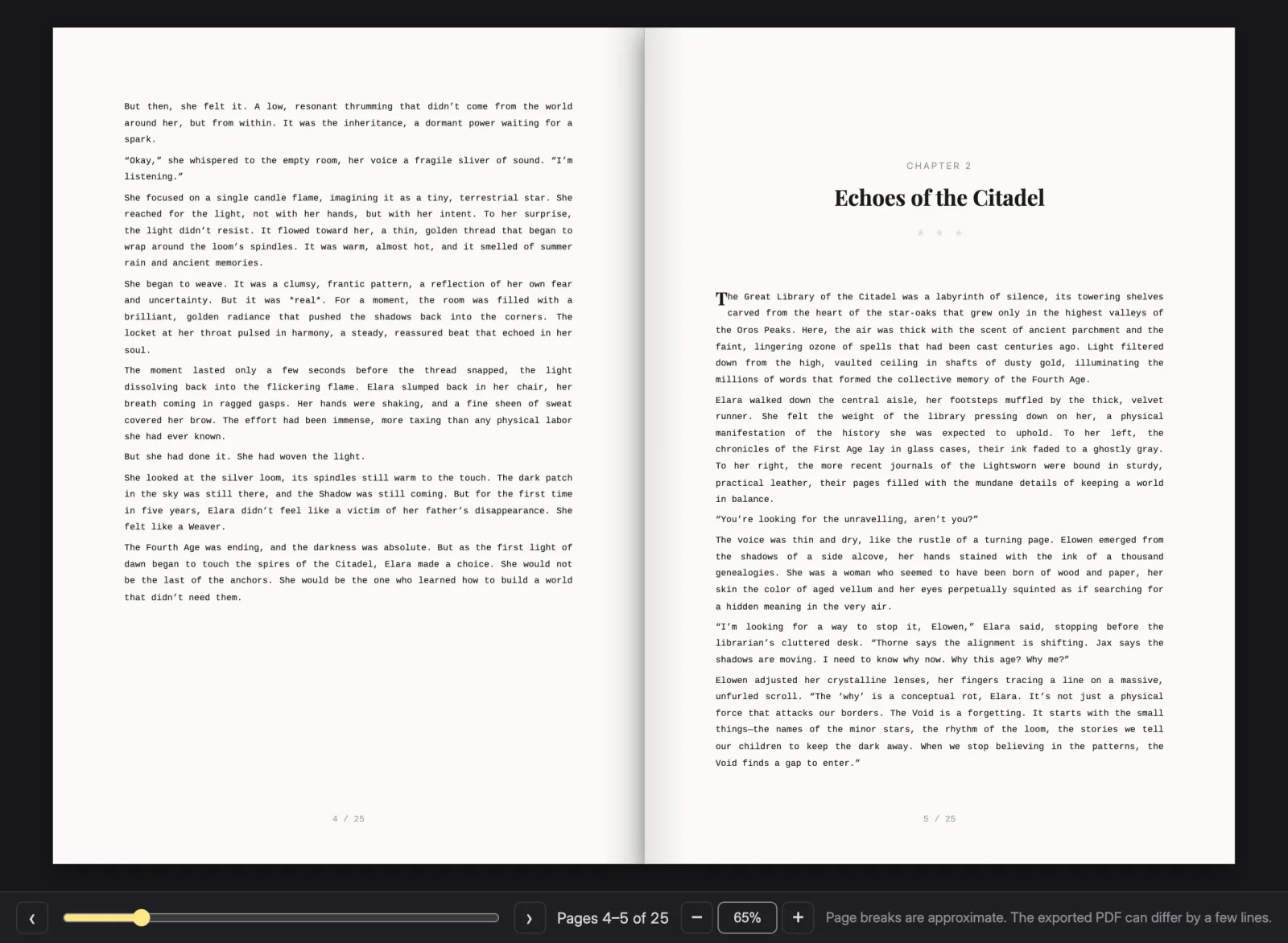
Book Preview shows the book as a reader would hold it: real pages at your trim size, two to a spread, with your chosen font and margins. It opens in its own window, so you can keep it beside the editor and watch the pages fill.
Open it with Open Book Preview in Overview › Book Layout, with ⇧ ⌘ P, or from the command palette. If the window is already open, it comes to the front.
Getting around
| To | Do this |
|---|---|
| Turn the page | Next page / Previous page, the arrow keys, Page Down / Page Up, or Space |
| Go to the first or last page | Home / End |
| Zoom | Zoom in / Zoom out, or ⌘ + / ⌘ - |
| Fit the spread to the window | Fit to window, or ⌘ 0 |
Page 1 is a right-hand page on its own, like the first page of a printed book. After that, pages come in pairs. The counter shows where you are, for example "Pages 4–5 of 212".
It keeps up
Change the trim size, margins or font in Book Layout, or keep writing, and the preview lays the pages out again (Laying out pages…). It stays on the same place in the book while it does.
Page breaks are approximate. The exported PDF can differ by a few lines, so check the PDF itself before you send it to a printer.
If the preview says This book has no chapters yet., it's telling the truth. If it won't open at all, close any preview window that's already open and try again.
Related
Checked against NovelOS Studio 1.5.1 · Updated · View as Markdown