Find in a chapter
Press ⌘ F while writing. A small bar opens with Find in chapter.
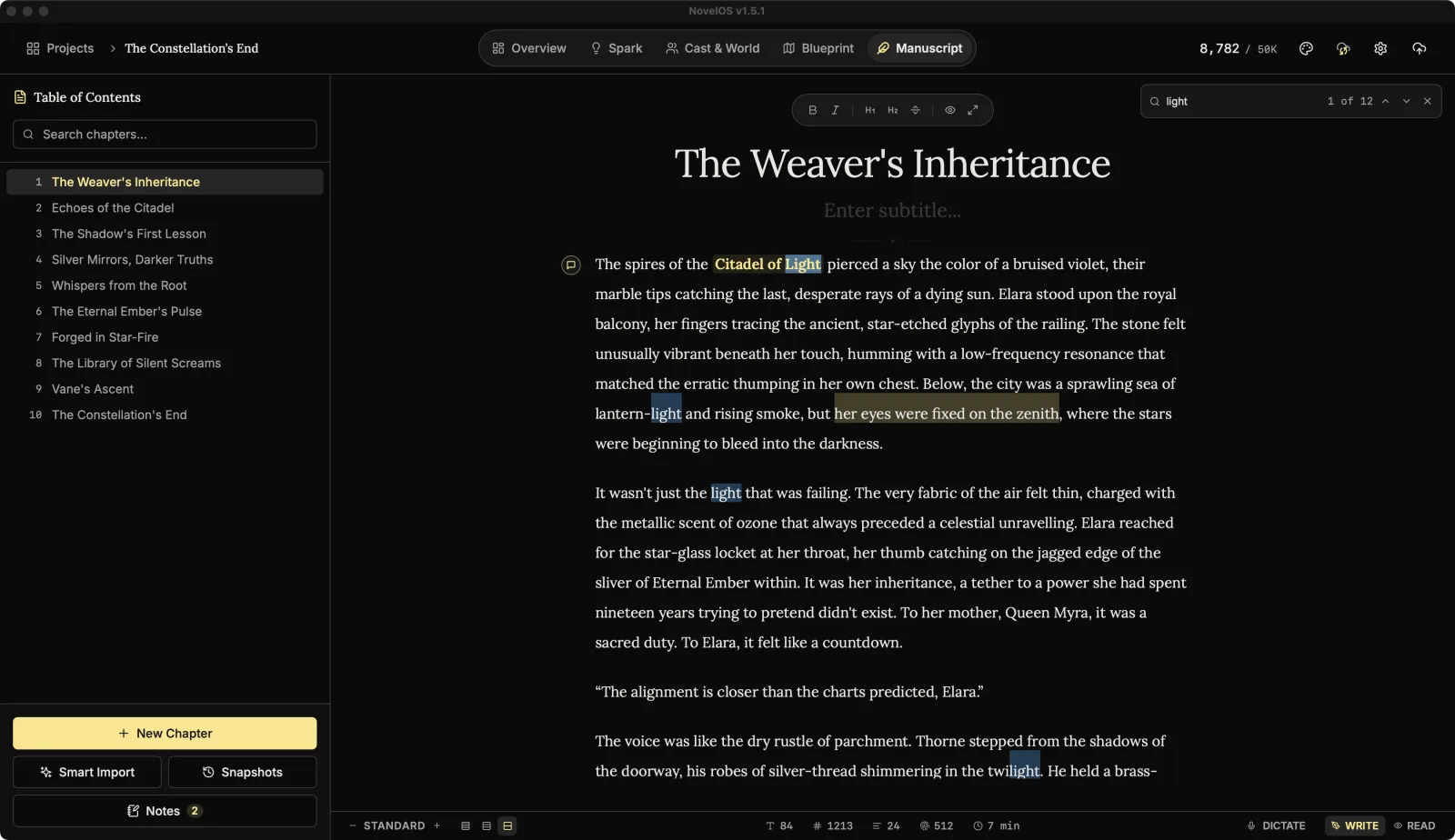
- Type, and every match in the chapter lights up. NovelOS jumps to the first one straight away.
- The bar counts them, for example "3 of 12". If there are none it says No matches.
- Enter or Next match goes to the next one. ⇧ Enter or Previous match goes back.
- Esc or Close find closes the bar. In Zen mode, Esc closes the bar first and leaves Zen alone.
Find ignores upper and lower case, so "rain" finds "Rain". It searches for exactly what you type: brackets, full stops and question marks are just characters. Matches don't run across paragraphs.
The highlight colours come from the theme (search-hit and search-hit-current), so you can change them in a custom theme.
Find across the whole book
Find works on one chapter. To look through the whole book, open the command palette with ⌘ K and type: it searches chapter titles and subtitles, plus characters, places, lore, scenes and boards. In the Table of Contents, the chapter search also looks inside the text. See Chapters, parts and the Manuscript.
Find doesn't replace text. To rename a character across the whole book, rename them in Cast & World and every mention follows.
Related
Checked against NovelOS Studio 1.5.1 · Updated · View as Markdown