Connect Claude Code, Codex, Cursor or Claude Desktop
MCP is the plug that AI tools use to talk to other apps. NovelOS runs an MCP server on your own computer, so a tool like Claude Code can list your chapters, read them, check a character's profile, leave a comment or fix a typo, without you copying text back and forth.
Open Settings › MCP.
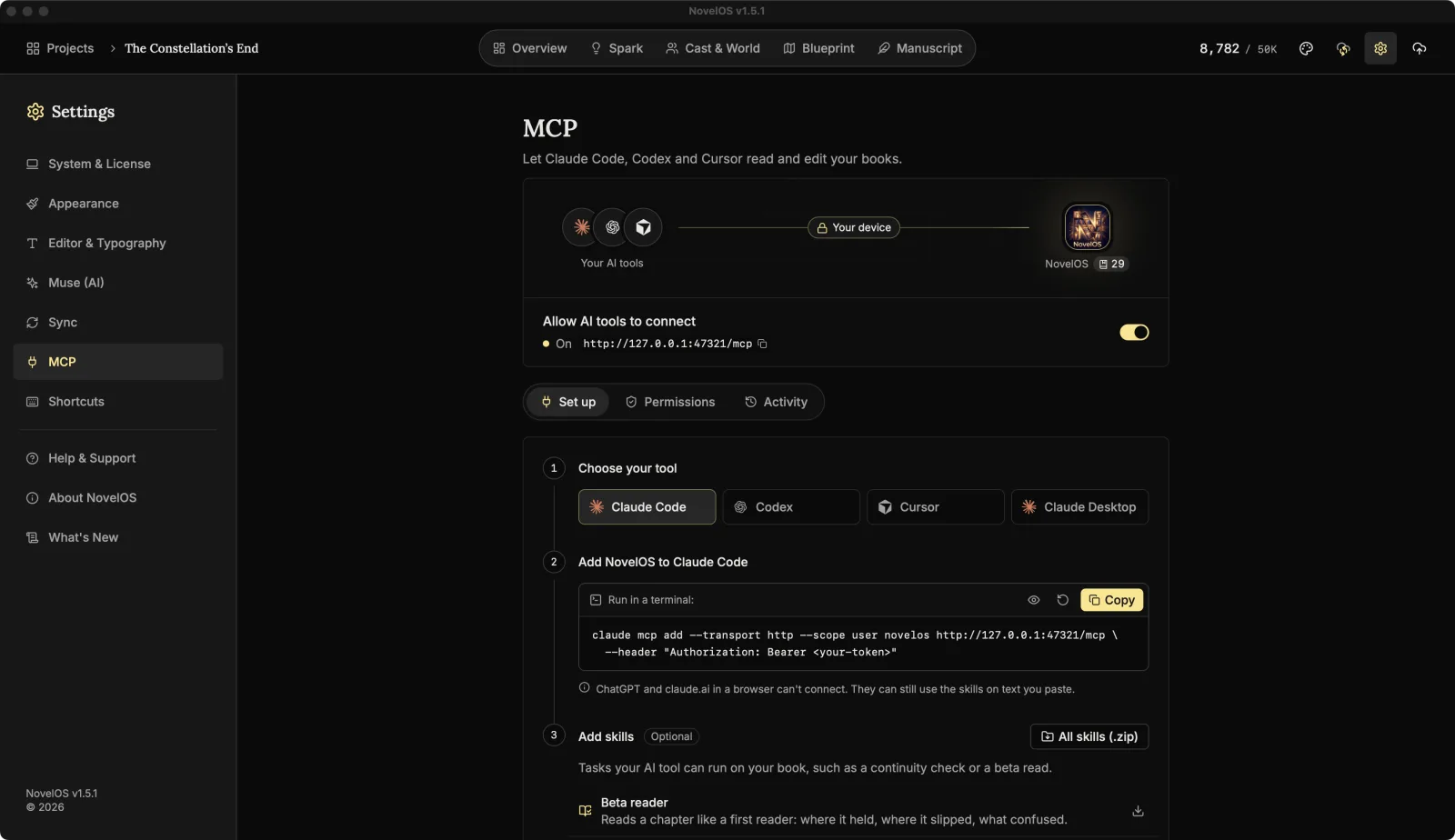
Turn it on
Switch on Allow AI tools to connect. The line under it reads Starting…, then On followed by the server address. Click the address to copy it (its button is Copy server address).
The first time, NovelOS shows Connected tools can change your writing, with what protects you:
- A snapshot before a tool first changes a chapter.
- Every change listed under Activity.
- Undo one change or a whole session.
Click I understand to put it away.
The switch stays on. Next time you open NovelOS the server starts by itself, and it stops when you quit. The picture at the top shows your tools, this device and NovelOS, with the number of books the tools can see. The line between them lights up while the server is running.
Add NovelOS to your tool
The Set up tab walks you through three steps.
1. Choose your tool
Pick Claude Code, Codex, Cursor or Claude Desktop.
2. Add NovelOS to Claude Code (or your tool)
NovelOS shows the exact setup for that tool, with your server address and access token filled in. Click Copy and paste it where the box says:
| Tool | Where it goes |
|---|---|
| Claude Code | Run it in a terminal. |
| Codex | Add it to ~/.codex/config.toml. |
| Cursor | Add it to ~/.cursor/mcp.json. |
| Claude Desktop | Add it to claude_desktop_config.json (Claude Desktop › Settings › Developer › Edit Config). This one needs Node.js installed. |
For Claude Code it looks like this, with your token in place of the placeholder:
claude mcp add --transport http --scope user novelos http://127.0.0.1:47321/mcp \
  --header "Authorization: Bearer <your-token>"
For Codex:
[mcp_servers.novelos]
url = "http://127.0.0.1:47321/mcp"
http_headers = { Authorization = "Bearer <your-token>" }
Don't type these in by hand; copy them from NovelOS, which has the right token and port. Then restart the tool, or start a new session, so it picks up NovelOS.
The token is hidden in the box. Show token reveals it; Copy always copies the full token either way.
If the switch is off, step 2 just says Turn on the switch above to get your setup.
3. Add skills (optional)
Skills are ready-made tasks, like a continuity check or a beta read, that teach your tool how to work on a novel. See Skills.
The access token
The token is the password your tool sends with every request. Without it, the server answers with a polite no.
Regenerate token makes a new one. Tools set up with the old token stop working until you paste the new setup into them, so NovelOS asks first: Regenerate or Keep current token. Do it if the token ended up somewhere it shouldn't, like a screenshot or a public repository.
The token is stored on this device only. It also sits in plain text in your tool's config file, which is how those tools work, so treat that file like you'd treat a password.
What stays private
- The server listens on
127.0.0.1only, so other computers on your network can't reach it. - Websites open in your browser can't reach it either. Requests from other web pages are refused.
- Tools see only the books you share under Permissions.
- Your Muse API keys are never shared with AI tools.
ChatGPT and claude.ai in a browser can't connect, because they run on someone else's servers, not on your computer. They can still use the skills on text you paste.
What a tool can do
Once connected, a tool can work with almost everything in a shared book:
- Read: the list of books, each book's overview and statistics, chapters, comments and notes, search results, characters, places and items, lore, plot boards, scenes, the timeline, the family tree, Spark boards, chapter snapshots, saved searches, book layout, writing history, pictures and maps.
- Edit (when Allow edits is on): create, rename, move and delete chapters; replace or insert paragraphs; add, resolve and delete comments; create and update characters, places, lore, scenes, plot cards and Spark cards; set pictures and map labels; take and restore snapshots; save export presets; and create a new book.
- Export (also needs Allow edits): make a book file, the same one Export makes, in the formats your licence includes. Audiobooks and
.novelosfiles are made in the app.
Tools that show MCP prompts (some list them as slash commands) also get four from NovelOS: Continuity check, Character voice check, Chapter summary and Scene outline.
When it won't start
| You see | What to do |
|---|---|
| Port 47321 is in use by another program. Choose another port under Access. | Another app has that port. Pick another under Permissions › Advanced › Port, then copy the new setup into your tools. |
| Couldn't start the server. Try another port, or restart NovelOS. | Try another port, or restart NovelOS. |
The message names whatever port you've set; 47321 is the default.
If the tool says it can't connect at all, check that NovelOS is open and the switch is on. The server only runs while the app does.
In the trial
Connecting AI tools such as Claude Code is part of the full version. In the trial the switch stays off. See Trial and licence.
Related
Checked against NovelOS Studio 1.5.1 · Updated · View as Markdown