Edit Muse's prompts
Every Muse button sends the AI a written prompt: a page of instructions plus the parts of your book that matter. The Prompts tab in Settings › Muse (AI) shows each one in full and lets you rewrite it. If you'd rather Muse wrote like a hard-boiled detective, or stopped suggesting dragons, this is where you tell it.
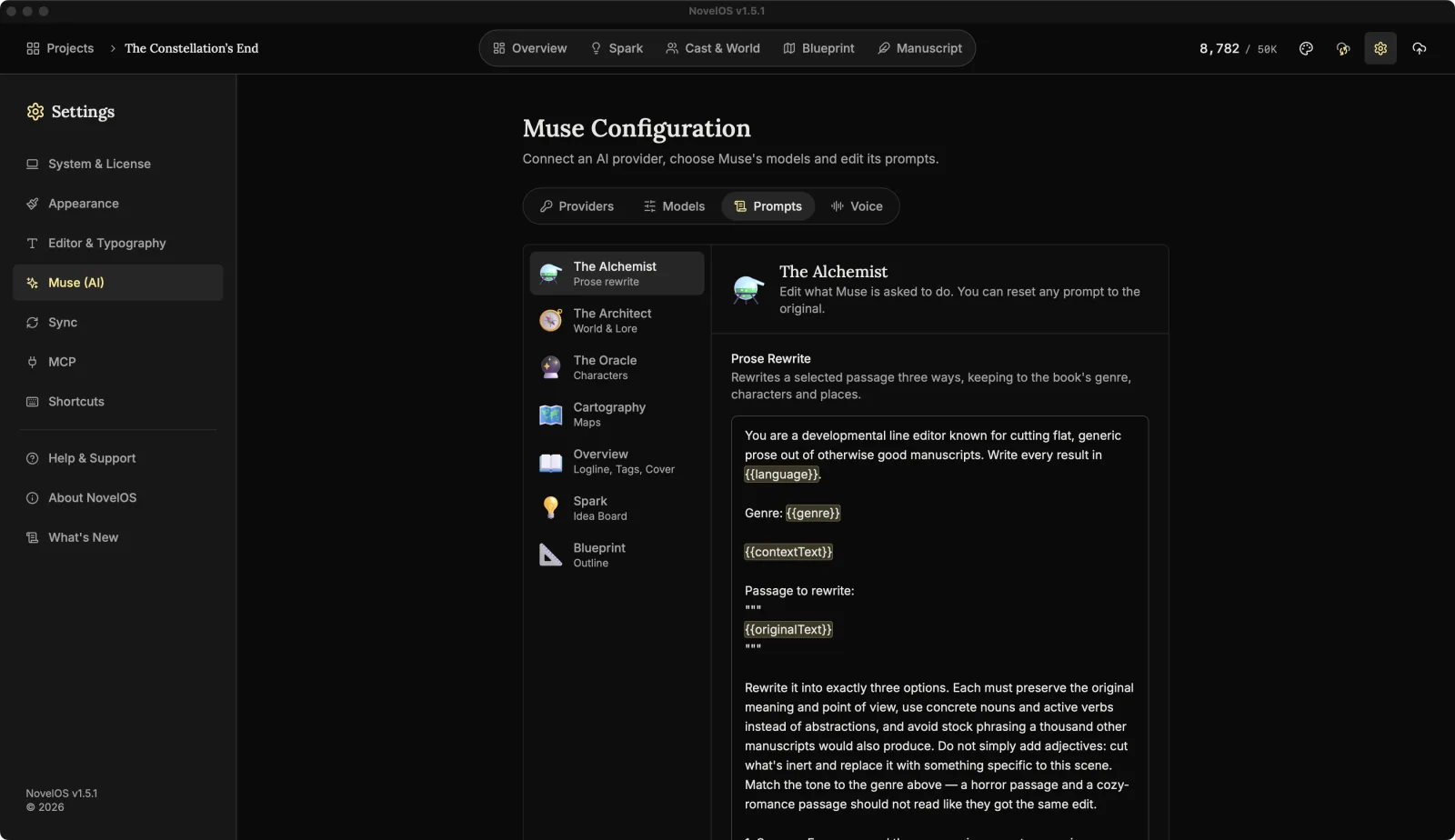
Edit a prompt
- Pick a generator from the list on the left.
- If it has more than one prompt, pick one from the row of tabs above the text.
- Edit the text. It saves as you type and applies to the next thing that generator makes. Nothing is sent anywhere until you use it.
An edited prompt is marked Edited, and the generator shows how many of its prompts you've changed.
- Reset to original puts one prompt back.
- Reset all puts back every prompt of the generator you're looking at.
Clearing the text, or typing it back exactly as it was, also counts as the original.
Placeholders
Words in double braces, like {{genre}}, are filled in from your book when the prompt is sent. They're tinted in the editor so you can spot them. Under the text, the chips list every placeholder that prompt can use. Click one to insert it where the cursor is.
For The Alchemist's Prose Rewrite, for example:
| Placeholder | Filled in with |
|---|---|
| {{originalText}} | The passage you selected |
| {{contextText}} | The paragraph around it, or the one before it |
| {{genre}} | The book's genre |
| {{language}} | The book's language, from Overview |
Every prompt can use {{language}}. If you delete a placeholder the prompt needs, NovelOS warns you: "This prompt no longer uses {{originalText}}, so Muse won't see that part of your book." It still lets you, in case that's the point.
The generators
The Alchemist (Prose rewrite)
- Prose Rewrite: rewrites a selected passage three ways, keeping to the book's genre, characters and places. You use it on a selection in the editor.
The Architect (World & Lore)
- World Concepts: suggests three places or items that fit the premise and everything already established.
- Lore Concepts: suggests three lore entries, such as artifacts or history.
- Concept Art: draws a concept-art thumbnail for a world or lore entry.
The Oracle (Characters). See Characters.
- Character Concepts: suggests three full character concepts that fit the premise and the existing cast.
- Character Portrait: draws a close-up of a character's face.
- Character Figure: draws the full body, matching the portrait.
- Character Attire Detail: draws a close-up of their clothing and accessories, matching the earlier images.
Cartography (Maps)
- Map Generation: draws a map from a style reference and terrain settings.
- Map Editing: changes an existing map from a written instruction.
- Place Assets: adds one or more named assets to a map at set positions.
- Place Names: suggests 12 place names across the map that fit the names already used in your world.
Overview (Logline, Tags, Cover). See Overview.
- Logline Generator: turns rough notes into a one-sentence logline that fits your cast.
- Hashtag Generator: suggests tags for the book without repeating the ones it has.
- Book Cover Generator: designs a portrait cover with the title and author name, using imagery from your world and lore.
Spark (Idea Board). See Spark.
- Idea Board Image: draws a reference image for an idea-board note from your prompt.
- Idea Board Image Details: writes a title, tags and description for the new picture.
Blueprint (Outline). See Blueprint.
- Outline Generator: builds a three-act outline of story beats from the board's plot points, each tied to your characters, world and lore.
A few tips
- Change one thing at a time. If the results get worse, you'll know why.
- Keep the placeholders that carry your book. A prompt without
{{originalText}}asks for a rewrite of nothing in particular. - Prompt edits are stored on this device. They don't sync, so set them up again on your other computer.
Related
Checked against NovelOS Studio 1.5.1 · Updated · View as Markdown