Maps with the Cartography Editor
Every place in the WORLD tab of Cast & World has a Cartography tab, where you can make it a map. A kingdom, a continent, one island with a suspicious number of caves. Maps are drawn by AI, so the Cartography Editor needs a Muse key; without one, its buttons stay greyed out.
AI maps are inspiration, not final art. The app says so too, and it's right: count the rivers before you put one in a plot point.
The Cartography tab
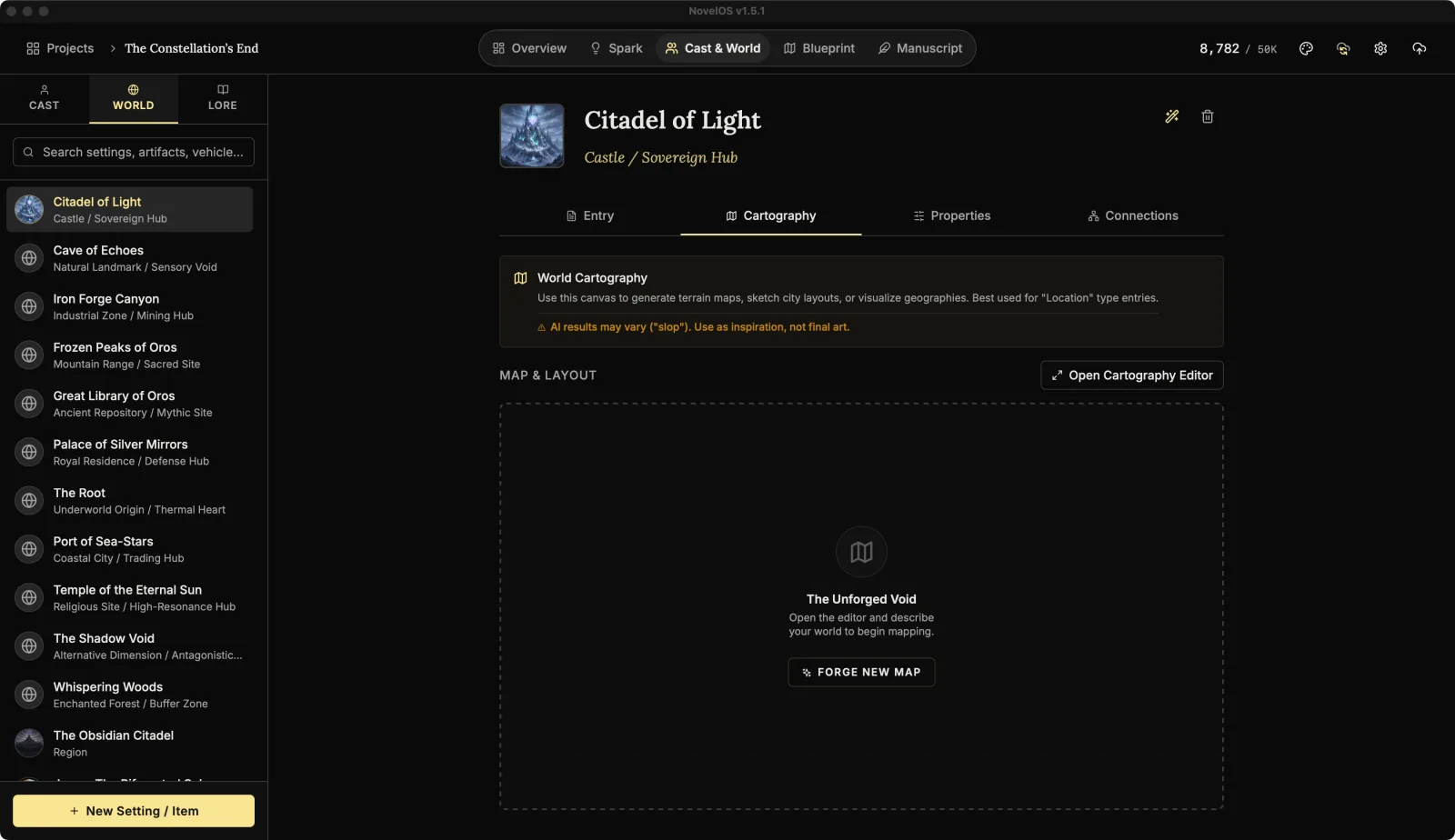
The tab shows World Cartography, a short note on what it's for, and the MAP & LAYOUT panel.
- With no map yet, the panel reads The Unforged Void. Click FORGE NEW MAP to open the editor.
- With a map, it shows a preview. Click Open Cartography Editor (above the preview, or on it) to work on it.
The Cartography Editor
The editor fills the window: tools on the left, the map on the right. Back to and the place's name, at the top left, closes it. Everything saves as you go. The bottom of the sidebar shows the map's status: "No map yet" or "Active Region".
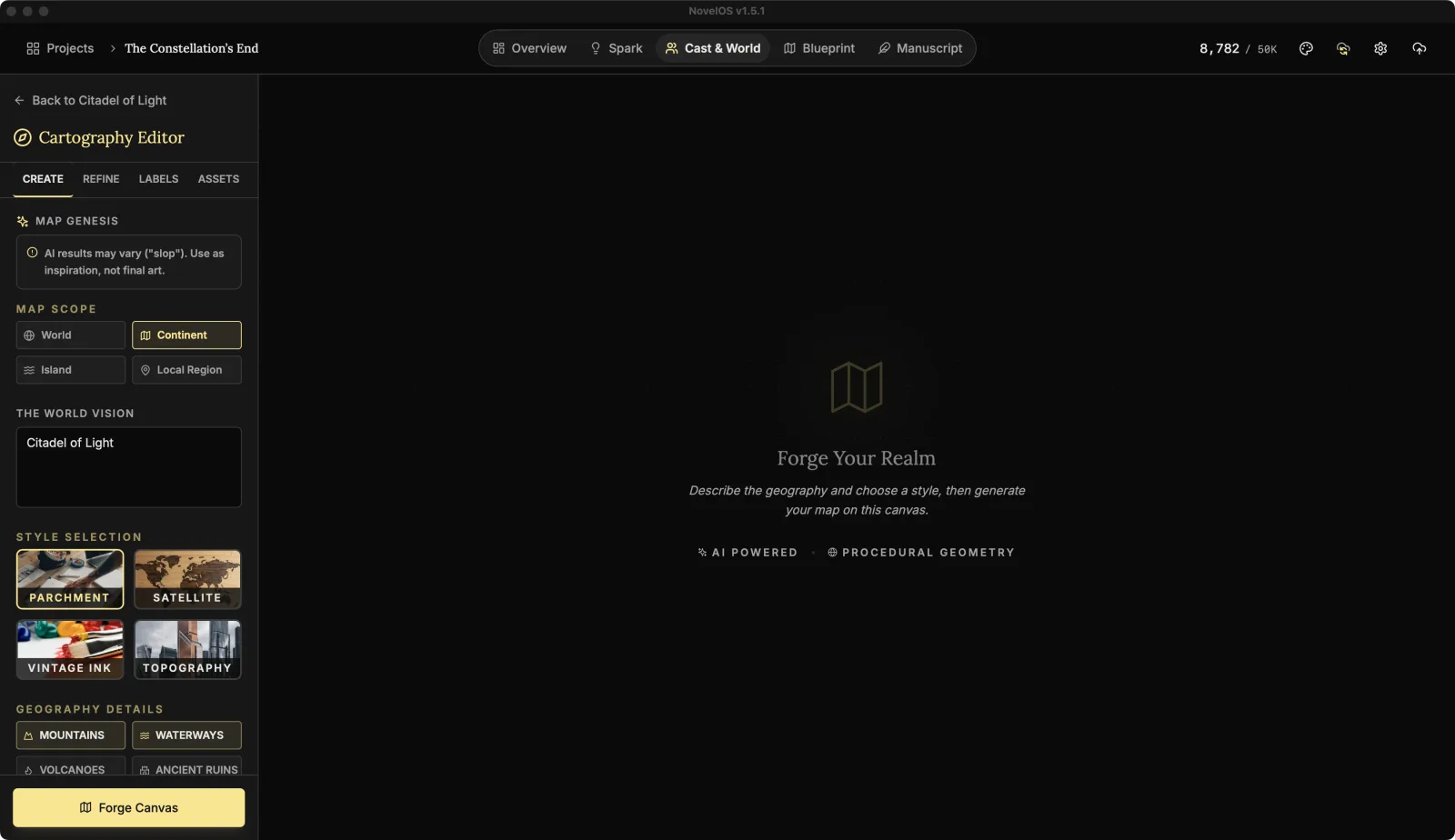
Create
The Map Genesis panel:
- Map Scope: World, Continent, Island or Local Region.
- The World Vision: describe the place in your own words. Climate, coastline, what lives there, what everyone's afraid of.
- Style Selection:
| Style | Looks like |
|---|---|
| Parchment | An old map on paper. |
| Satellite | A photo from orbit. |
| Vintage Ink | A hand-drawn ink map. |
| Topography | A modern contour map. |
- Geography Details: switch on what the map should include: Mountains, Waterways, Volcanoes, Ancient Ruins, Archipelagos, Chasms.
- Click Forge Canvas.
Forge it again and you get a new map. Undo, in the toolbar at the top right of the map, brings back the previous one.
Refine
Divine Intervention changes the map you have. Write a Refinement Prompt, such as "turn the mountains into jagged obsidian towers", and click Manifest Changes. The app calls this experimental, and it is: some prompts land, some don't. Undo is right there.
Also here:
- Export Map saves the map as an image.
- Reset Void deletes the map and its undo history, back to an empty canvas. There's no getting that map back afterwards, so export it first if you might want it.
Labels
Name the places on the map. Summon New Sigil adds a City, a Feature or a Region, with a placeholder name ("New Settlement", "Hidden Landmark", "NEW REALM").
- Drag a label on the map to move it.
- Click a label for Rename, Enlarge, Shrink and Remove. When renaming, press Enter to keep the name.
- Named Locations lists every label, with Search Labels... to find one and Remove on each.
- Hide Labels and Show Labels, in the map toolbar, toggle them all.
Assets
Drop landmarks onto the map and let the AI paint them in.
- Four come built in: Wizard Tower, Dark Fortress, Great World Tree and Cursed Ruins. Filter them with All, Buildings, Nature and Creatures.
- Manifest New Asset makes your own: an Asset Name (e.g. Floating Palace), a Detailed Prompt..., then Create Sigil.
- Drag to Manifest: drag an asset onto the spot on the map where it should go. The AI redraws the map with it there, at a scale that suits the map's scope.
Map controls
The toolbar at the top right of the map has Undo, Redo, Zoom In, Zoom Out, Reset View, and Hide Labels or Show Labels. Every change (a new map, a refinement, a dropped asset) is a step you can undo.
Related
Checked against NovelOS Studio 1.5.1 · Updated · View as Markdown