Family tree
Every character has a Genealogy view under The Web: a family tree you build by dragging characters into place. The whole book shares one set of family ties, so the tree on a character's page is their family, and adding a sister on one page shows up on the sister's page too.
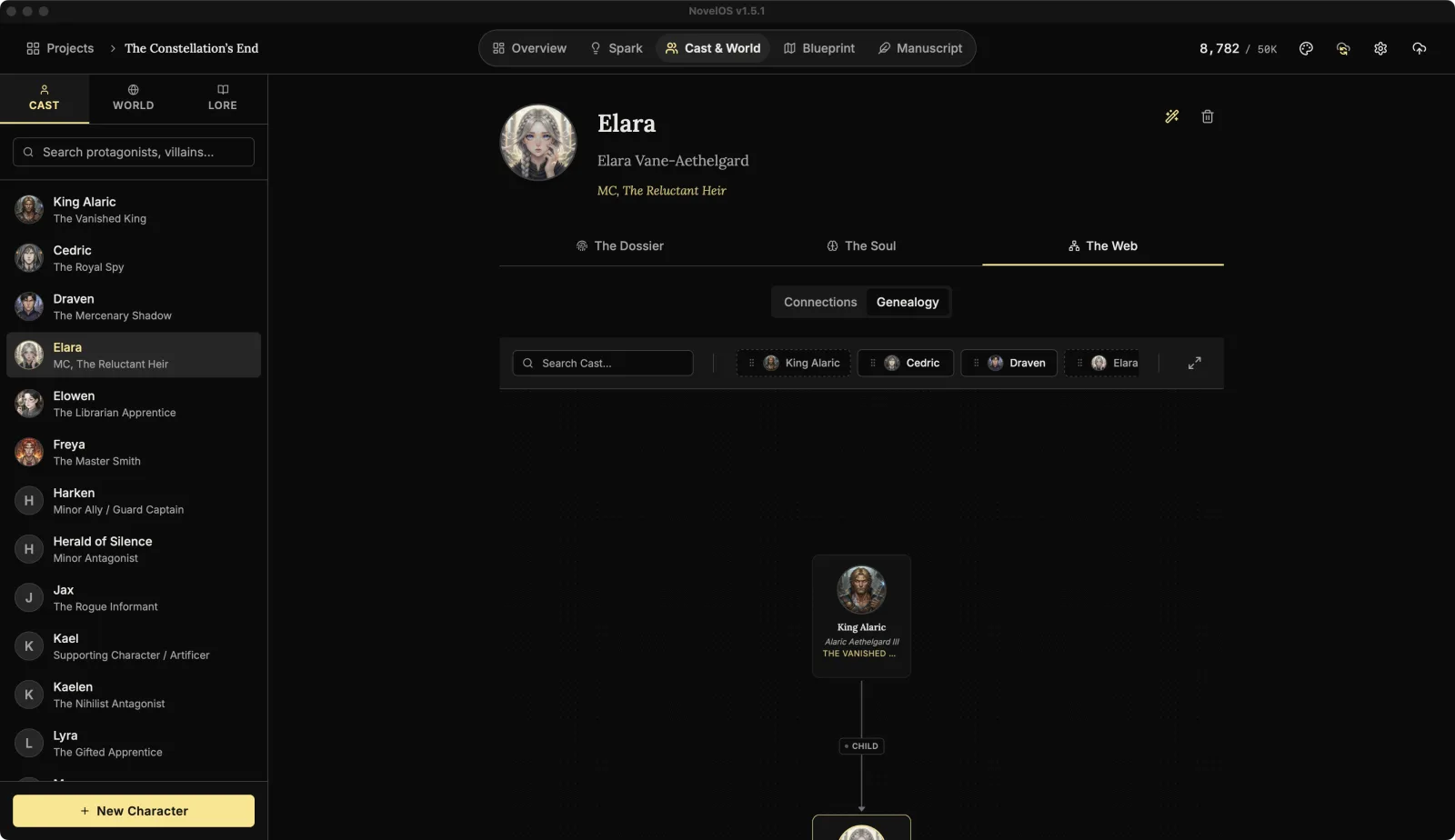
Start a tree
A character with no family yet shows Uncharted Lineage and a line saying they aren't part of any family tree. Click Start Family Tree to put them on the canvas.
Add relatives
Next to the tree is the cast tray, with Search Cast... to find people.
- Drag a character from the tray toward someone on the tree.
- Slots appear around the nearest person: Parent (only while they have no parent on the tree), Partner, Older Sibling, Younger Sibling, and Add Child (or Older Child and Younger Child once they have children). The slot under your pointer lights up.
- Drop the character on a slot.
The tree arranges itself. Two helpful shortcuts are built in:
- A new sibling gets the same parents as the person you dropped them next to.
- When a parent has exactly one partner, that partner counts as the second parent, for the new sibling and for the person they're a sibling of.
You can also drag from the bottom edge of one card to another card to tie them as parent and child, the first being the parent.
Label and remove ties
Each line has a label in the middle (Child, Sibling, Partner). Click it to type something more specific, like "adopted" or "estranged", then press Enter or click the tick to save (Esc backs out). The × next to the box deletes that tie.
Hover a person and click Remove from Tree to take them off. They stay in your cast.
Click a person on the tree to open their page.
Work in full screen
Big families get cramped. Maximize, next to the tray, opens the Genealogy Editor across the whole window. Its list on the left searches your cast ("Search cast members...") and marks the character you came from as Active. Drag people in the same way. In here, clicking a person doesn't leave the editor, so you can arrange things in peace. Back to and the character's name returns you to their page.
The zoom controls in the corner zoom in, zoom out and fit the tree on screen.
Related
Checked against NovelOS Studio 1.5.1 · Updated · View as Markdown