Settings
Open Settings from the gear in the top bar, press ⌘ ,, or type Settings in the command palette to jump straight to one section.
The sidebar has these sections:
| Section | What's in it | Guide |
|---|---|---|
| System & License | Interface language, updates, your licence, legal | below |
| Appearance | Themes and your own colours | below |
| Editor & Typography | Fonts, spacing, indents, typewriter mode, Read Aloud | The editor, Read Aloud |
| Muse (AI) | AI keys, models, prompts, voice engine | Muse (AI) |
| Sync | Cloud accounts and encryption | Sync |
| MCP | Let Claude, Codex or Cursor work on your book | AI tools |
| Shortcuts | Every command and its keys | Shortcuts |
| Help & Support | Docs, bug reports, email | below |
| About NovelOS | Version | below |
| What's New | Release notes | below |
System & License
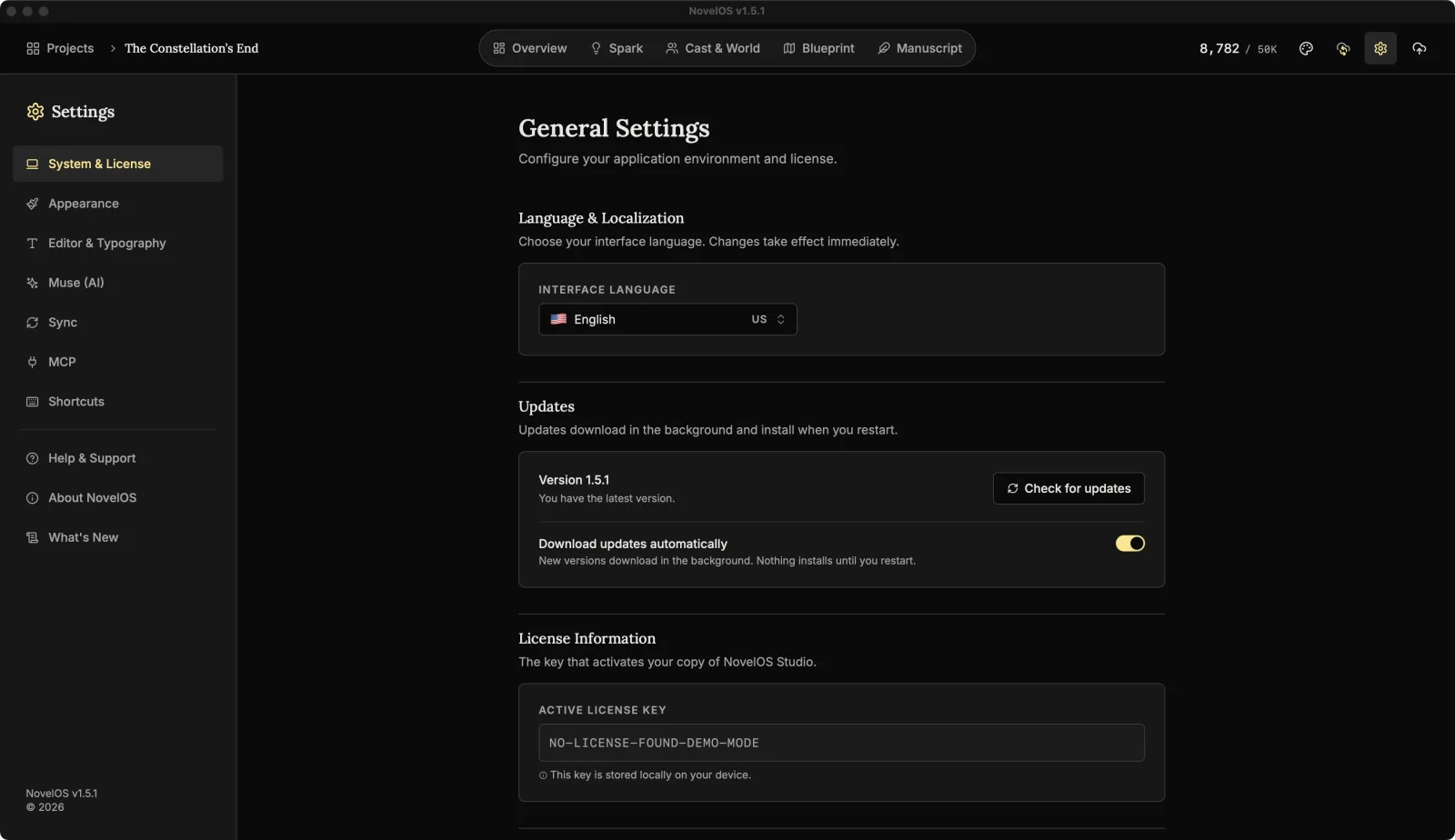
The page is titled General Settings.
Language & Localization
Interface Language changes the language of every menu and button, right away. NovelOS speaks 23 of them:
| English | Indonesian | Malay |
| Arabic | Italian | Dutch |
| Chinese (Simplified) | Japanese | Polish |
| Chinese (Traditional) | Korean | Portuguese |
| Danish | Hebrew | Swedish |
| German | Hindi | Thai |
| Spanish | Finnish | Turkish |
| French | Vietnamese |
This is separate from the language your book is written in, which you set per book in Overview. A Finnish interface can hold an English novel, and the other way round.
Updates
NovelOS downloads updates in the background and installs them when you restart.
- Check for updates looks now instead of waiting.
- Download updates automatically is on by default. Turn it off and NovelOS shows a Download button when there's a new version, so you choose when.
- When an update is ready you'll see Restart to update. Your work is saved first. If you'd rather wait, it installs when you quit.
- What's new shows what changed.
If an update can't install itself, the message says why. On a Mac outside the Applications folder, it asks you to move NovelOS there. Otherwise it links to the downloads page.
License Information
Active License Key shows the key that activated this copy. It's stored on this computer only. The reset button next to it (Reset License) removes the licence from this computer, for example before you move to a new one. Nothing you've written is deleted, but you'll need to activate again before opening your books here. See Trial and licence.
Legal & Compliance
View License opens the End User License Agreement. The short version of section 5: what you write is yours.
Appearance
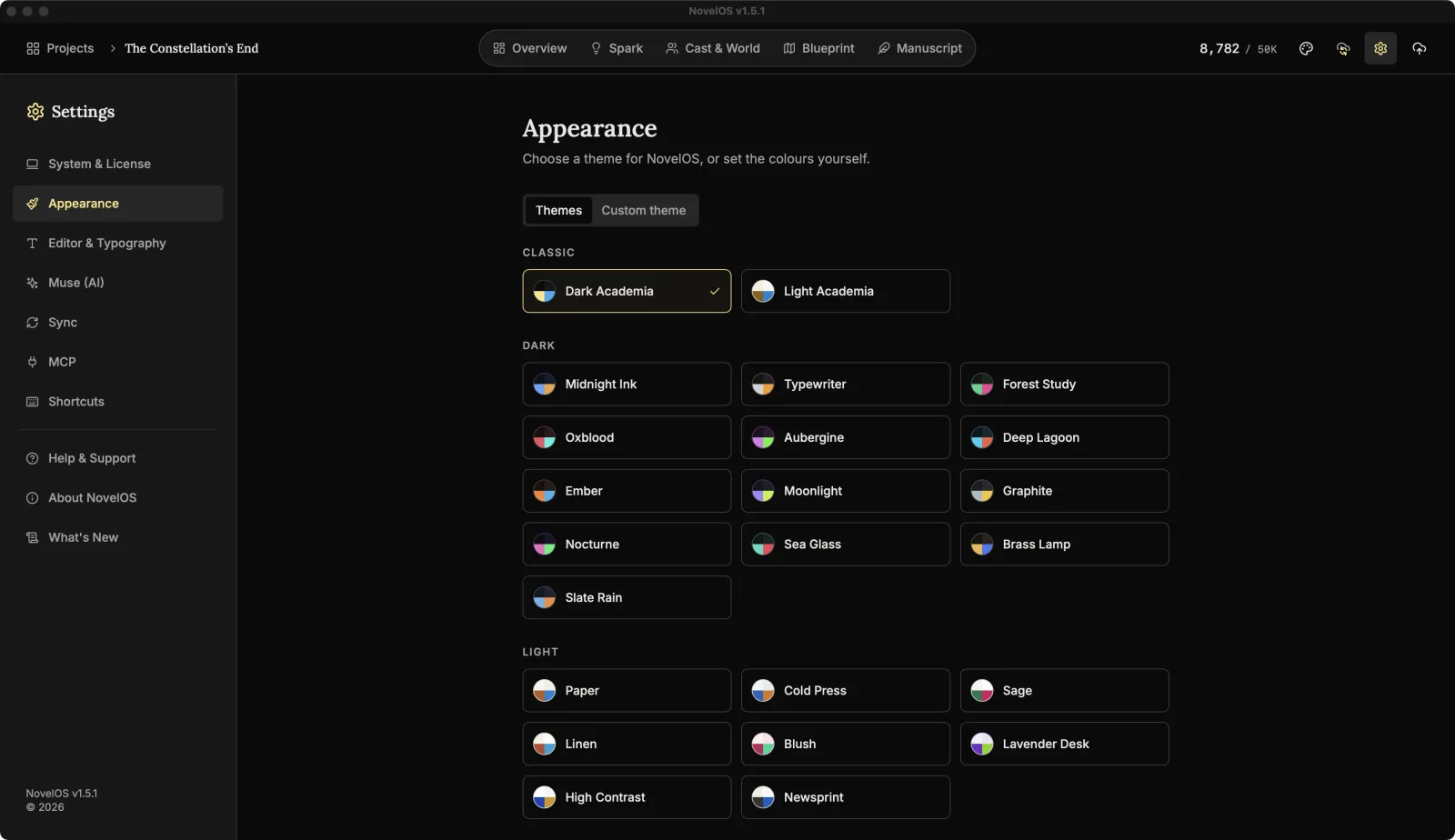
Two tabs: Themes and Custom theme. You can also press ⇧ ⌘ T (Choose a theme) from anywhere, or Switch light / dark in the command palette.
Themes
Click a theme to wear it. There are 23, in three groups:
| Group | Themes |
|---|---|
| Classic | Dark Academia, Light Academia |
| Dark | Midnight Ink, Typewriter, Forest Study, Oxblood, Aubergine, Deep Lagoon, Ember, Moonlight, Graphite, Nocturne, Sea Glass, Brass Lamp, Slate Rain |
| Light | Paper, Cold Press, Sage, Linen, Blush, Lavender Desk, High Contrast, Newsprint |
Custom theme
Custom theme starts from whatever theme you're wearing, so you only change what bothers you.
- Pick a base: Dark or Light.
- Change any colour with its picker, or type a value in the box beside it.
- Click Use this theme.
Start over throws away your changes and copies the current theme again. If some text would be hard to read with your colours, NovelOS warns you and lists the pairs (for example foreground / background: 2.10:1). Aim for 4.5:1 or higher.
The colours come in four groups:
| Group | Colours |
|---|---|
| Pages and cards | background, foreground, card, card-foreground, popover, popover-foreground |
| Buttons and emphasis | primary, primary-foreground, secondary, secondary-foreground, accent, accent-foreground |
| Quiet text and lines | muted, muted-foreground, border, input, ring, gold |
| Warnings and search | destructive, destructive-foreground, destructive-text, search-hit, search-hit-foreground, search-hit-current |
A name ending in -foreground is the text that sits on top of the colour without it. search-hit colours the matches when you find in a chapter, and search-hit-current the one you're on.
Editor & Typography
The editor's font, size, spacing, indents and Typewriter Mode are explained in The editor. The font choices are Classic: Literary Serif, Clean: Modern Sans and Stable: Draft Mono. Text size is Concise, Standard, Readable or Enlarged.
The Read Aloud part of this page (narration, voices, speed) is in Read Aloud.
Help & Support
| Card | Where it goes |
|---|---|
| Documentation: Open Docs | This site |
| Report an Issue: Open GitHub | A new issue on the NovelOS feedback board on GitHub |
| Contact Support | An email to support@novelos.studio |
About NovelOS and What's New
About NovelOS shows your version number. What's New lists every release with what was Added, Changed, Fixed, Improved, Removed and Security, newest first, with the Latest Version marked.
Related
Checked against NovelOS Studio 1.5.1 · Updated · View as Markdown