Dictation (write by voice)
Some scenes come out better said than typed, especially dialogue. Dictation writes what you say into the chapter, where the cursor is, while you're still talking.
Start dictating
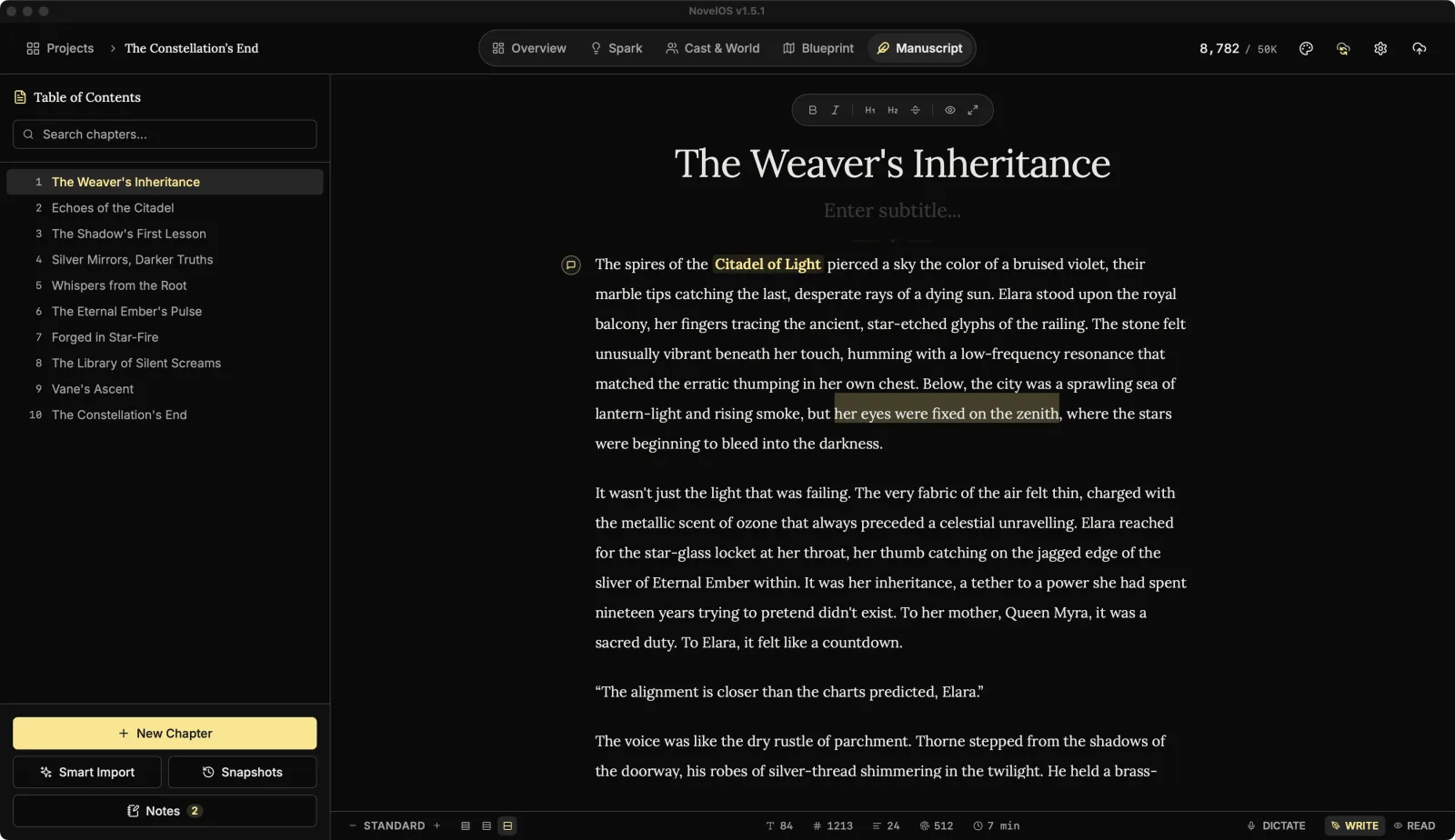
- Open a chapter in Write mode and click where the words should go.
- Click Dictate (write by voice) in the status bar. The first time, your computer asks whether NovelOS may use the microphone. Say yes.
- When the button says Listening, talk.
- Click it again (Stop dictating) when you're done.
The first time, NovelOS downloads its speech model (about 28 MB, shown as Downloading 40% and so on). After that it's stored on your computer and starts in a moment, offline too.
What you'll see
The sentence you're saying appears dimmed and may change as NovelOS hears more of it. When you finish the sentence, it settles into ordinary text. Punctuation and capitals are added for you, so you don't have to say "comma".
Each dictated sentence is one step for ⌘ Z, so undo takes back a sentence, not a syllable.
Private by design
The speech model runs on your computer. Your voice is never uploaded, and dictation works with no internet connection once the model is downloaded.
Good to know
- Dictation understands English only, so the button appears only in books whose language is English. Set the book's language in Overview.
- It's in Write mode only. Read mode is for reading.
If it stops
| Message | What to do |
|---|---|
| NovelOS is not allowed to use the microphone. | Allow it in your system's privacy settings (on a Mac: System Settings › Privacy & Security › Microphone), then try again. |
| No microphone was found. | Connect one and try again. |
| The speech model could not be loaded. | It downloads once, so check your connection and try again. |
Related
- The editor and the status bar
- Read Aloud, the same thing the other way round
Checked against NovelOS Studio 1.5.1 · Updated · View as Markdown