Smart Import from Word, EPUB, Markdown or PDF
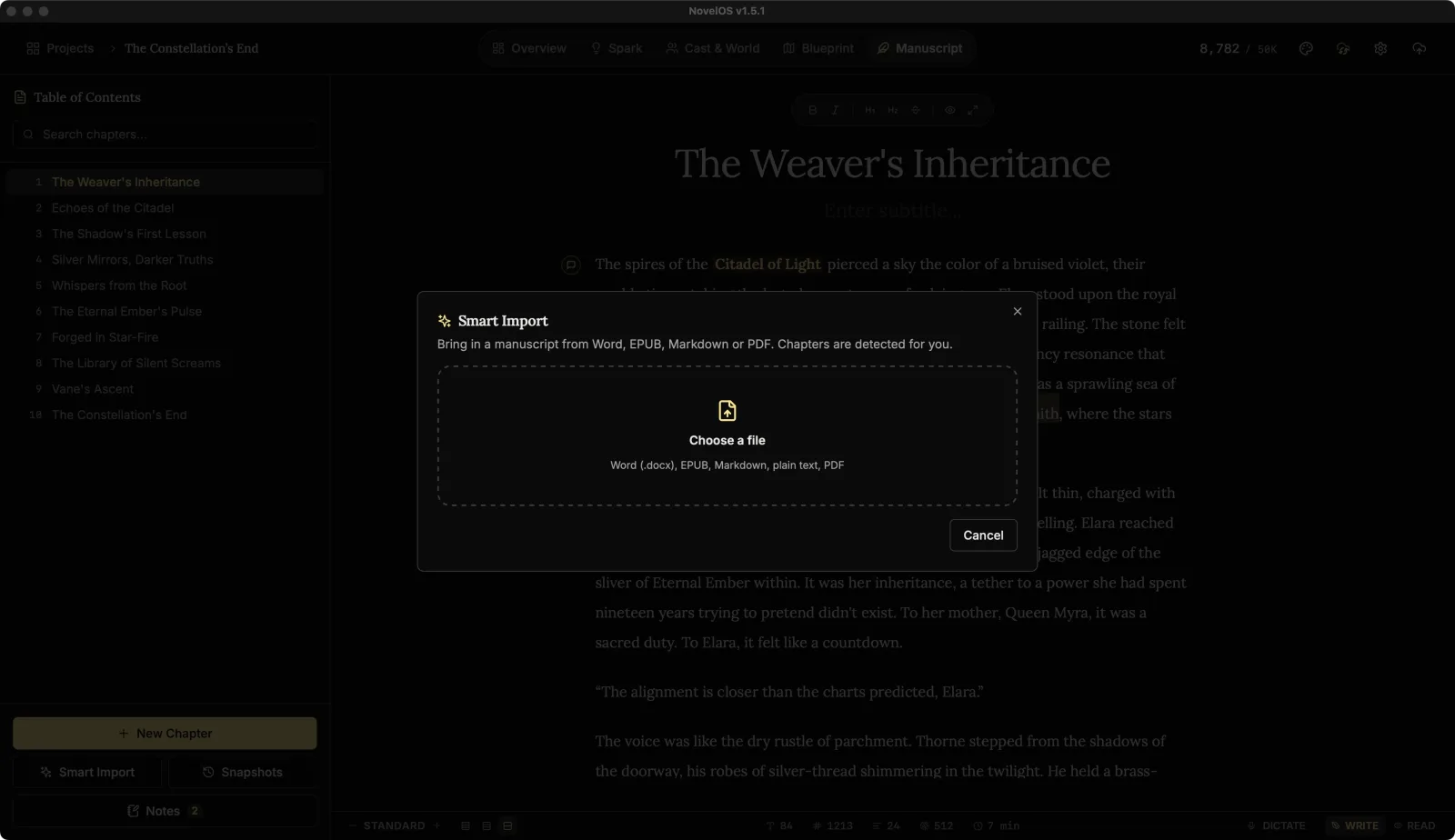
Already have a draft somewhere else? Smart Import reads the file, splits it into chapters, and shows you the split before anything changes. Google Docs users: download the document as Word (.docx) first.
Open it
- In a book: Smart Import at the bottom of the Table of Contents, or ⇧ ⌘ I.
- From the Projects page: Book from a File, which always makes a new book.
Import a file
- Click Choose a file and pick a Word (.docx), EPUB, Markdown, plain text, PDF file.
- NovelOS reads it (Reading and the file name) and lists the Chapters found with each one's word count. Anything before the first chapter, such as a title page or dedication, is marked Front matter.
- Untick chapters you don't want. Select all and Select none help with long books. The line above the list shows how many are selected and how many words that is.
- Under Where the chapters go, choose Add to the open book (the chapters go after the ones already there) or New book from this file, which is named after the file.
- Click Import (it shows how many chapters, such as Import (12)), or Create book for a new one. NovelOS opens the first imported chapter.
How chapters are found
Smart Import tells you how it split the file, so you know how much to trust it:
| What it says | What happened |
|---|---|
| Split on the heading styles in the document. | The file used real headings (Word's Heading styles, EPUB chapters). The most reliable. |
| Chapters were found by their numbering. | No heading styles, so it looked for "Chapter 1", "Chapter 2" and so on. |
| Chapters were found at page breaks. | No headings or numbers, but page breaks. |
| Chapters were found where the spacing jumps. | It guessed from extra blank lines. |
| Chapters were found from centred headings. | It used centred lines as chapter titles. |
| This imports as a single chapter. | It found no divisions at all. Split it yourself afterwards with Scene breaks or new chapters. |
Plain text and PDF have no structure of their own, so the split is a best reading of the layout. NovelOS says so and asks you to check it. For a PDF it also removes lines that repeat on every page, such as running headers and page numbers.
Tip: if a Word file splits badly, apply Heading 1 to each chapter title in Word and import again. It's quicker than fixing 40 chapters by hand.
Undo an import
After an import, the Table of Contents shows Imported 12 chapters with Undo import. It's also in the command palette as Undo last import.
Undo deletes exactly the chapters that import created and nothing else. If you've already edited some of them, NovelOS asks first (Undo import?), because those edits go too.
When a file won't import
| Message | Why |
|---|---|
| Unsupported file type. | Smart Import reads .docx, .epub, .md, .txt and .pdf. Save older .doc files as .docx. |
| No readable text was found in this file. | The file is empty, or the text is in images. |
| No text layer was found. | A scanned PDF: pictures of pages, with no text inside. It would need character recognition first. |
| This does not look like an EPUB | The EPUB is damaged or isn't really an EPUB. |
In the trial, a book can only hold so many chapters. If a file has more, NovelOS imports as many as fit and tells you. See Trial and licence.
Related
- Chapters, parts and the Manuscript
- Projects
- Restore a .novelos backup (a different thing: a whole NovelOS book, not a manuscript)
Checked against NovelOS Studio 1.5.1 · Updated · View as Markdown