Comments, bookmarks and Margin Notes
Notes to yourself belong next to the sentence they're about, not in a separate file you'll never open. NovelOS keeps them in the margin of the chapter, and gathers all of them in Margin Notes.
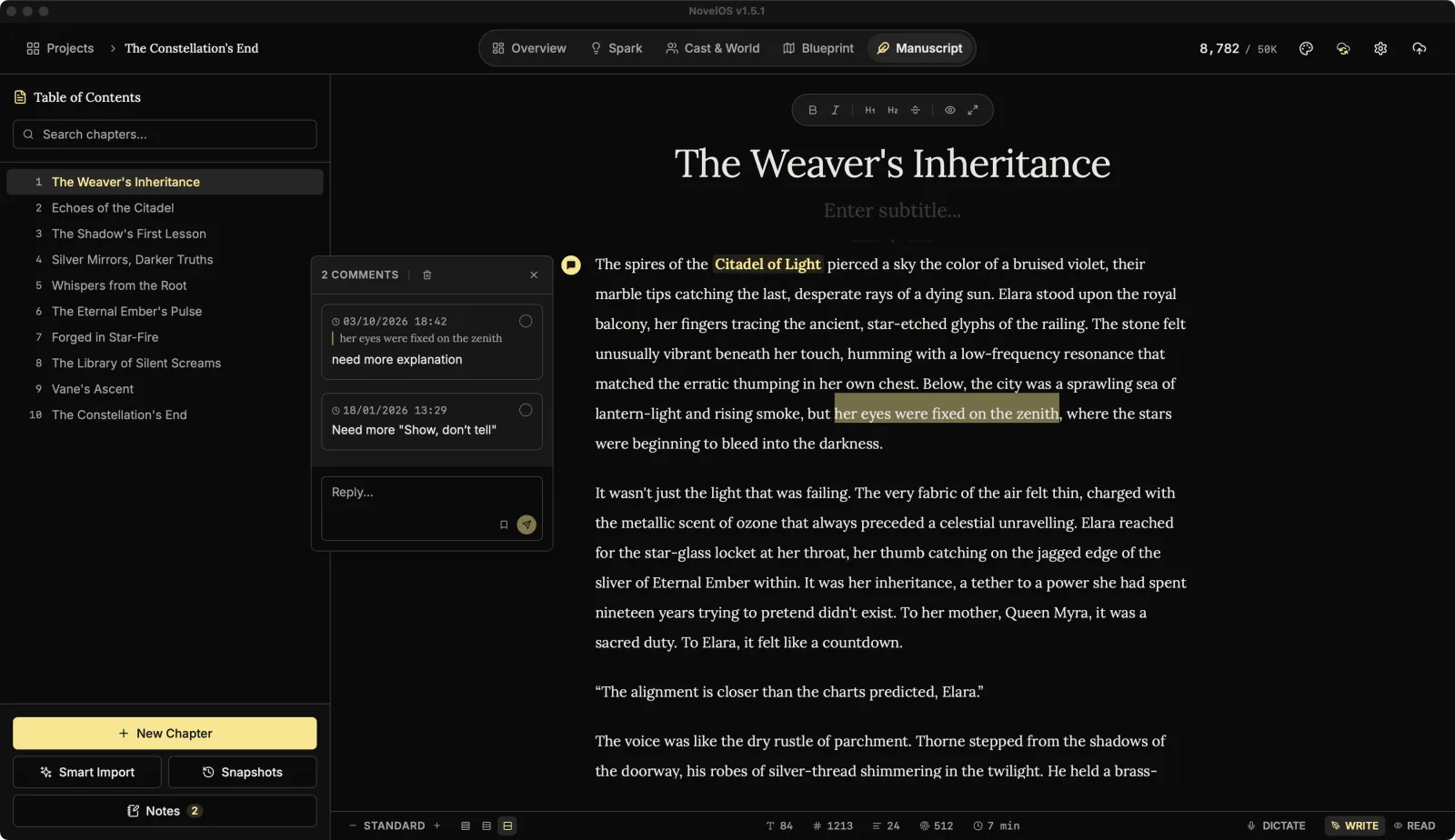
Leave a comment
Point at a paragraph and a comment button appears in the margin beside it (Add Comment). Click it, type in Write a comment..., and confirm.
To comment on a few words rather than the whole paragraph, select them first and click Comment on Selection. The selected words are quoted at the top of the comment, and they're highlighted in the text while the comment is open. Changed your mind? Comment on the whole paragraph instead drops the quote.
A paragraph with notes keeps a small icon in the margin. Click it (View Comments) to open the thread. Each thread holds up to 5 comments; after that the box says Comment limit reached. Reply with Reply....
- Delete Comment removes one comment after Confirm Delete. Delete entire thread removes them all after Confirm.
- The tick button marks a note Mark as done. Done notes are struck through, and once every note on a paragraph is done its margin icon turns into a check. Reopen brings one back.
Bookmarks
A bookmark marks a place without saying anything about it. Open the comment box on a paragraph and click Bookmark this passage. It shows a bookmark icon in the margin and appears in Margin Notes as Bookmark, so "come back to this" takes one click.
Margin Notes: every note in the book
Click Notes at the bottom of the Table of Contents, or press ⇧ ⌘ M. Margin Notes lists every comment and bookmark in the book, in reading order.
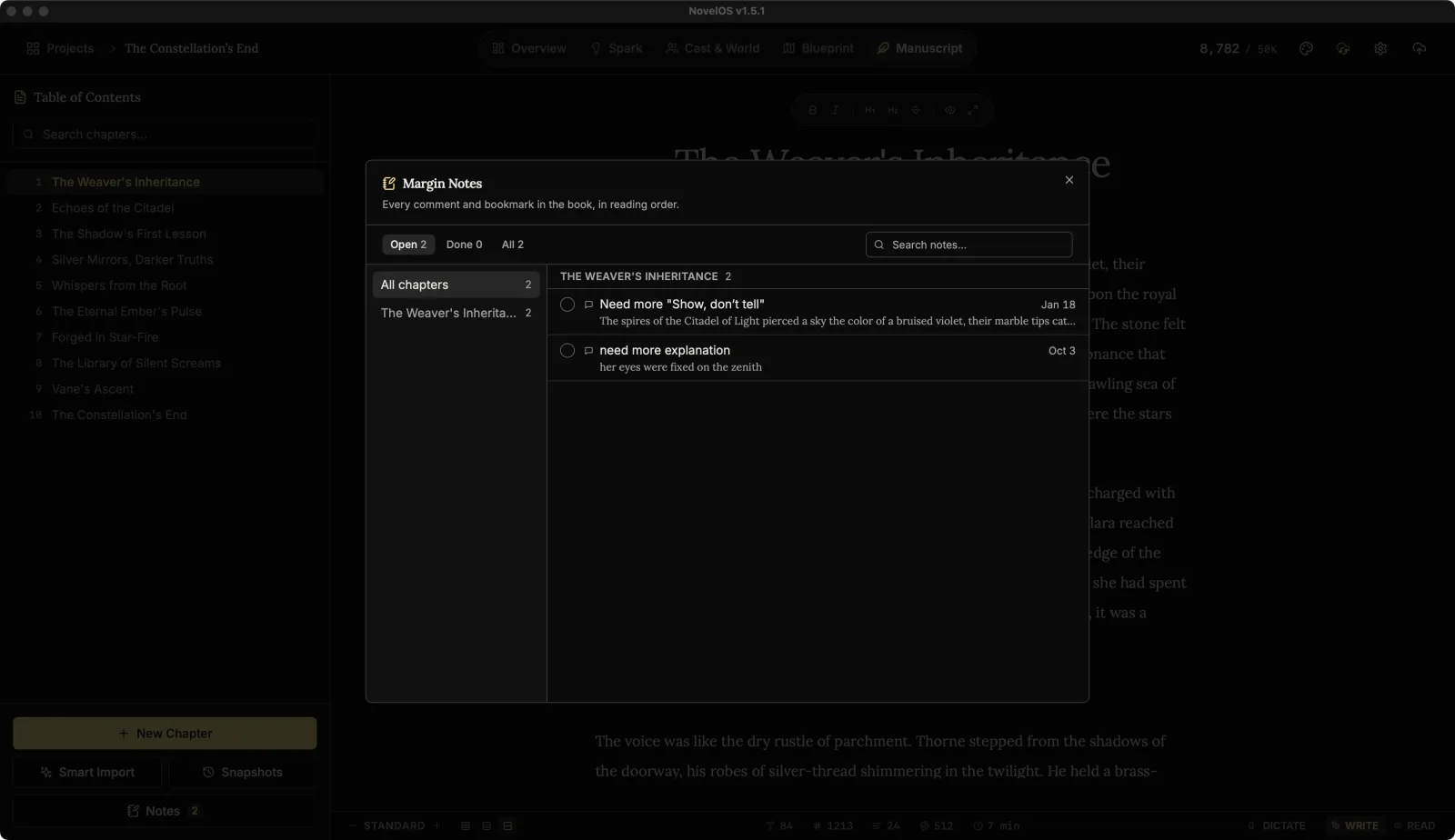
- The column on the left lists All chapters and each chapter with notes, with counts. Click one to narrow the list.
- All, Open and Done filter by state.
- Search notes… searches the notes and the text they're attached to.
- Click a note to jump to it. The chapter opens with the paragraph in view.
- Tick a note done right from the list.
If you delete the text a note was attached to, the note stays, marked The text this note was attached to has been removed., so nothing you wrote to yourself disappears silently.
Related
Checked against NovelOS Studio 1.5.1 · Updated · View as Markdown