Export to Word, EPUB, PDF and more
Publish / Export turns the manuscript into files you can send to an editor, load on an e-reader or upload to a store. Open it from the top bar or press ⌘ E. The page is called the Editorial Foundry, because "Export Settings" didn't sound like it had ever made anything.
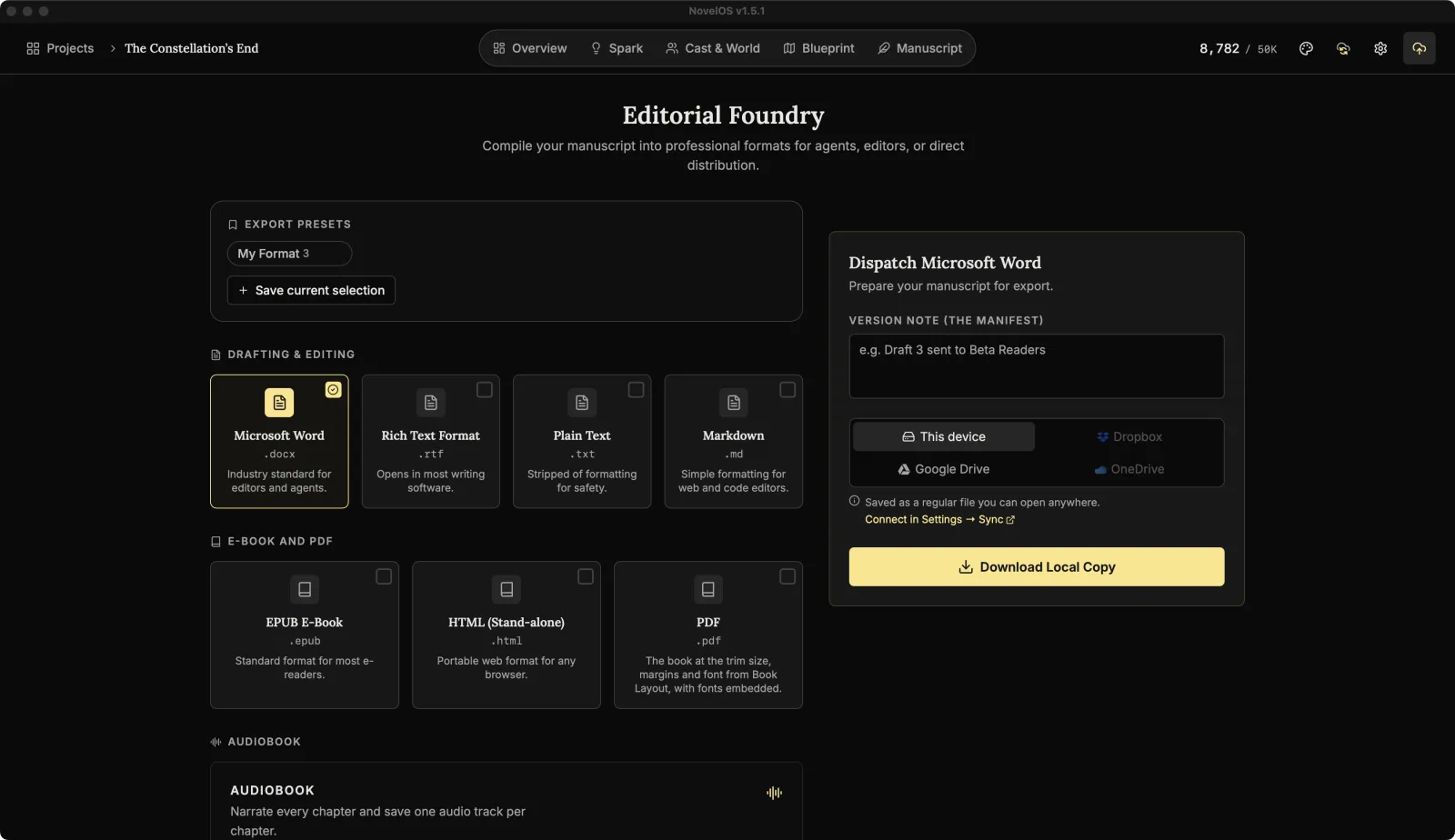
Export in three steps
- Pick the formats. Click as many as you need. You can export all seven at once.
- Add a Version Note (The Manifest), if you like. Something like "Draft 3 sent to beta readers". It goes in the export log so future you knows which file went where.
- Choose where to save it under Save to, then click Download Local Copy (or Download 3 Files, and so on). With a cloud service picked, the button reads Upload to Dropbox and the like.
The formats
Drafting & Editing
| Format | Use it for |
|---|---|
Microsoft Word (.docx) |
Editors and agents. The industry standard. |
Rich Text Format (.rtf) |
Opens in nearly any writing software. |
Markdown (.md) |
Websites, code editors and plain-text tools. |
Plain Text (.txt) |
Just the words, no formatting at all. |
E-Book and PDF
| Format | Use it for |
|---|---|
EPUB E-Book (.epub) |
Most e-readers and e-book stores. |
| Printing and print-on-demand. It uses the trim size, margins and font from Book Layout, with the fonts embedded. | |
HTML (Stand-alone) (.html) |
One file that opens in any browser. |
Check Book Layout before a PDF. The PDF is laid out from the settings in Overview › Book Layout. Book Preview shows you the pages before you export.
Export presets
If you always send the same set (say, Word for your editor plus EPUB and PDF for yourself), save it:
- Pick the formats.
- Click Save current selection and give it a name.
Next time, one click on the preset picks those formats again. It shows how many it Applies. Hover a preset for Rename and Delete.
Save to the cloud
Under Save to you can pick This device, Dropbox, Google Drive or OneDrive.
- This device saves a normal file wherever you choose.
- A cloud service uploads the file, unencrypted, so you can open it from any app or share it. Files land in
Apps/NovelOS Studio/Exportson Dropbox and OneDrive, and in aNovelOS Studio Exportsfolder on Google Drive. When it's done, Open in Dropbox (or Drive, or OneDrive) takes you straight there.
A service shows Connect in Settings → Sync until you've connected it in Sync. Exporting to the cloud is part of the full version; in the trial, exports stay on your computer.
The Export Manifest
At the bottom of the page, the Export Manifest lists every export of this book: the Time, a Version ID, the Format, the Destination and your Notes.
Audiobook
Generate audiobook narrates every chapter and saves one audio track per chapter.
- Pick MP3 (plays on every device and audiobook app) or WAV (lossless, for editing in an audio app).
- Click the voice button to pick a narrator and speed. These are the same voices as Read Aloud.
- Click Generate audiobook and choose a folder.
NovelOS shows roughly how many minutes of audio the book will make before you start, and which chapter it's on while it works.
- On-device voices are free and private. The voice model downloads once (about 90 MB) and then works offline.
- ElevenLabs voices use your own ElevenLabs key. NovelOS tells you about how many characters it will send, and asks before sending, because ElevenLabs bills them to your account.
On-device voices narrate books in English only. ElevenLabs voices read many languages.
In the trial
The trial exports to PDF. A licence adds Word, EPUB, Markdown, the audiobook and the rest. See Trial and licence.
If an export fails
- "Successfully exported 2 format(s), 1 failed": the others are saved. Try the failed one again on its own.
- "Sign in to Dropbox again in Settings → Sync": the connection expired. Reconnect, then export again.
- "Your Google Drive is full": free some space there, or save to this device.
Related
- Overview › Book Layout
- Book Preview
- Read Aloud
- Projects, for
.novelosbackups of the whole project
Checked against NovelOS Studio 1.5.1 · Updated · View as Markdown